
🏷️ Manual for bulk buyers
Portal, licences, customers, your own app — tab by tab.
Signing in and securing your account
The portal is at ovemio.com/portal.
Two-factor sign-in is mandatory. Without it you do get in, but you can neither create licences nor see customers — every action answers with “Please set up two-factor sign-in first”. Set it up under Security: scan the QR code with an authenticator app, type in the code, write down the backup codes.
Only one session can be signed in at a time. If a second browser signs in, it sees a notice with the time and can take over — the first is then thrown out. That is deliberate: an account two people work with at the same time is an account two people have.
The tabs are arranged in two rows. The top row holds the daily work with customers: My customers, Remote setup, Remote maintenance, Buy/create licences and Broadcast. The bottom row holds what you set up once: App generator, Domains, Domain rollout, Import, Error reports and Security.
The “My customers” tab
Your support code is at the very top. Your customers enter it in the app under Settings → Support → Connect to provider and then appear here — even if they did not get the app from you.
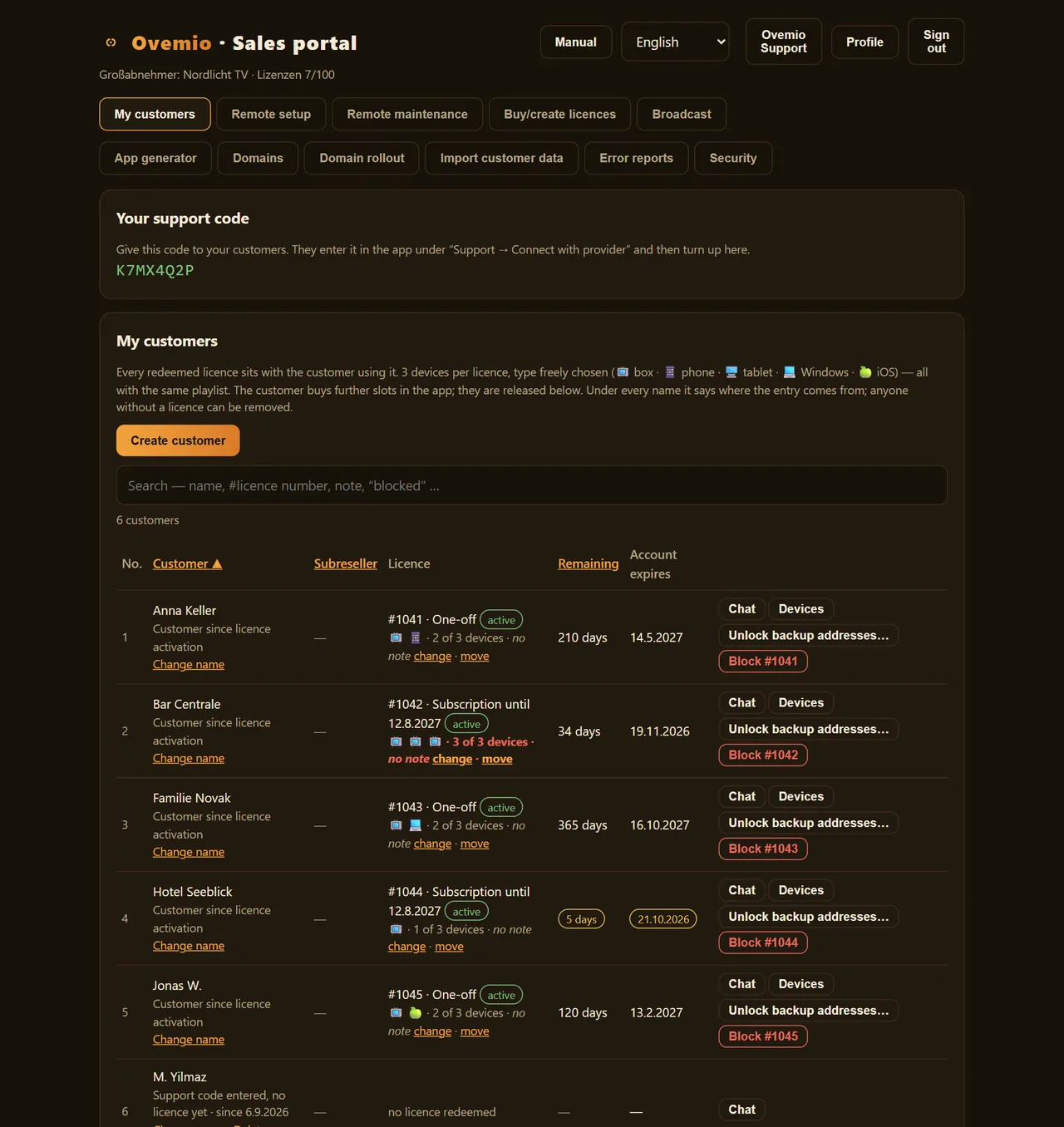
Every redeemed licence is listed under the customer who uses it. A licence covers three devices of any type: 📺 box, 📱 phone, 🖥️ tablet, 💻 Windows, 🍏 iOS. If a customer buys more slots in the app, the order appears at the bottom and you release it.
Under each name you see where the entry comes from: redeemed licence, entered support code or legacy records. You can only remove a customer as long as they hold no licence; their chat history goes with them.
Search finds name, licence number, note or “blocked”. Once you have a hundred customers, that is faster than scrolling.
Chat opens the conversation with this customer; it appears directly in their app.
The “Remote setup” tab
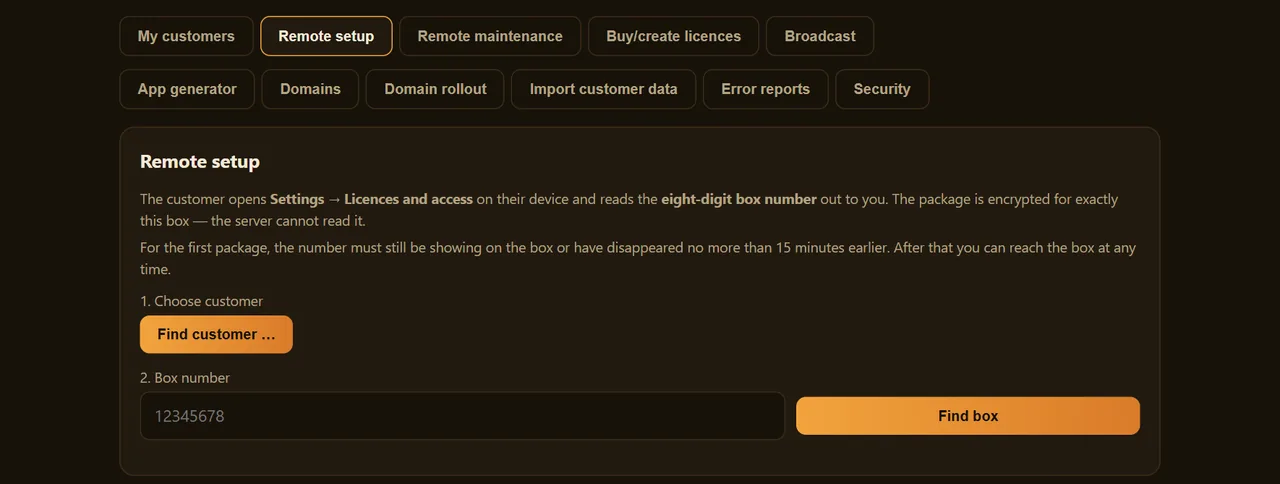
You set up your customer’s box without them typing anything. They open Settings → Licences and access on the device and read the eight-digit box number out to you. You select the customer, enter the number and send the licence, credentials and your TMDB key in one package.
Up to three accounts fit into one package, each with its own username and password. For each account you tick which of your domains the box receives. On the box, each account becomes a list of its own. If you send new data later, the app replaces exactly these lists; whatever the customer created themselves stays.
The package is encrypted for exactly this box; the server cannot read it.
For the first package, the number must still be visible on the box or have disappeared no more than 15 minutes ago. After that you can reach the box at any time. Without two-factor sign-in you cannot look up a box.
The customer can also send their credentials from their phone themselves: either via “Pair with phone” with a QR code, or by entering the box number on the phone while the box is showing it.
The “Remote maintenance” tab
For a box that is already running and needs help. The customer opens Settings → Support and reads the six-digit code out to you. It is valid for 30 seconds; the session after that lasts 15 minutes.
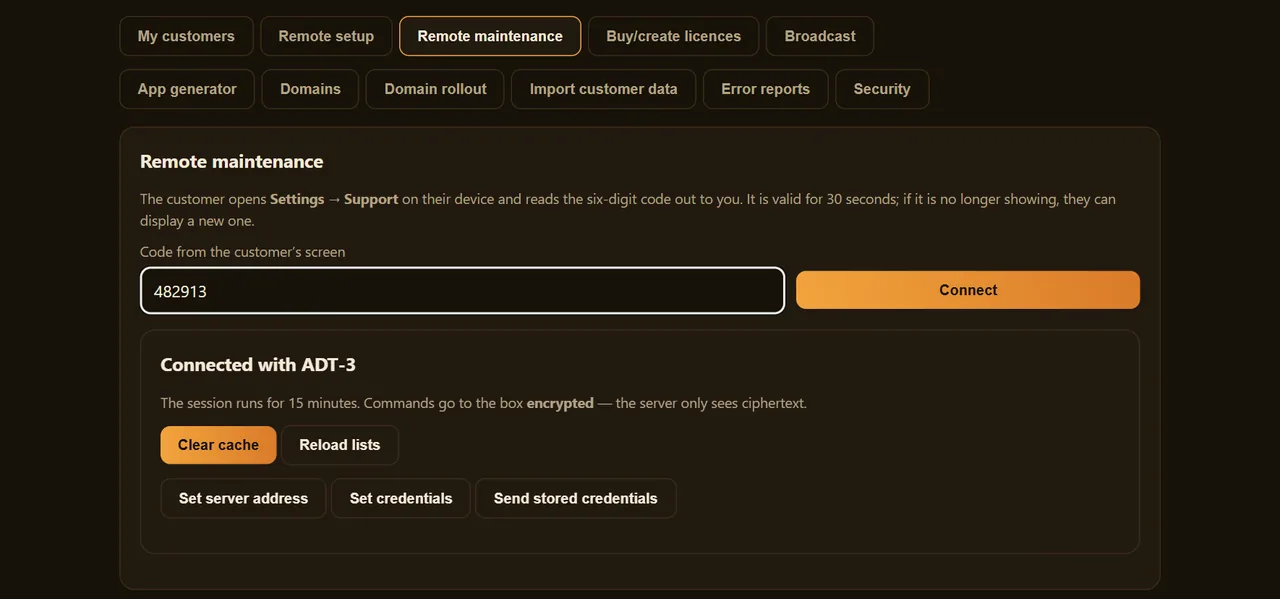
| Clear cache | Posters and cached lists are discarded. Profiles, history and favourites stay. |
|---|---|
| Reload lists | Fetches channels, movies and series fresh from the server. |
| Set server address | A different address for the current list. |
| Set credentials | Username and password, optionally with a different address. |
| Send stored credentials | Sends the account you imported for this customer. It is opened only in your browser and re-encrypted for the box. |
The “Buy/create licences” tab
Create licence. Choose the type — subscription with a term in days or one-off without expiry —, add an internal note, done.
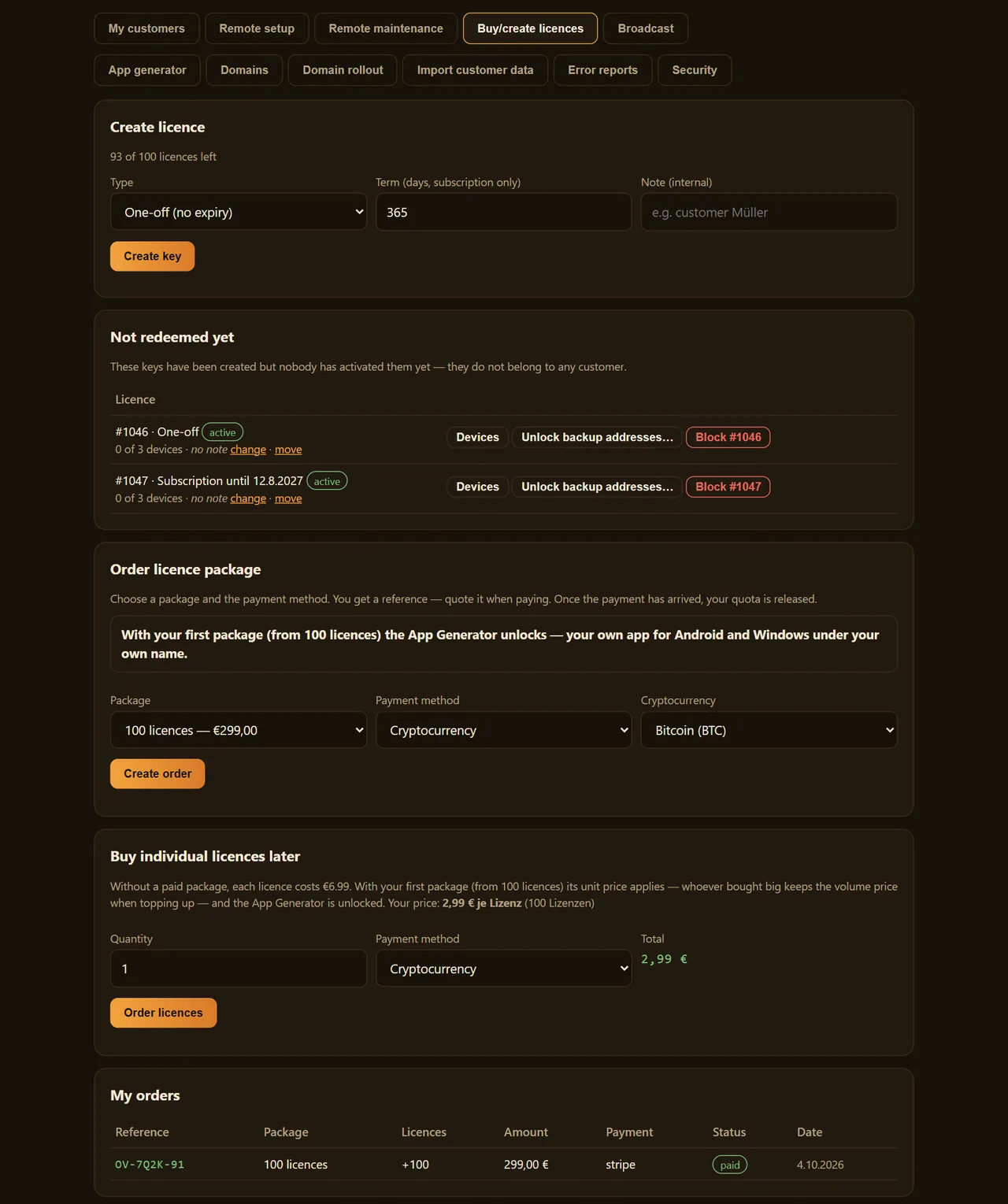
The key is shown once. The database holds only a fingerprint of it; we cannot restore it. Copy it straight away to where it belongs.
Not redeemed yet lists keys that have been created but not activated by anyone.
Order package. Choose the package and payment method. With card, your quota is available within seconds of payment. With bank transfer, PayPal or crypto you receive a reference to state with your payment.
Buy individual licences later. Without a paid package, each licence costs 6.99 €. With the first package (from 100 licences), its unit price applies, also when buying more, and the app generator is unlocked.
My orders shows every order with its status.
The “Broadcast” tab
One message to all your customers at once, spoken if you like. It appears in the support chat of every app. For announcements such as maintenance or a server change.
The “App generator” tab
This is where an app under your name is created, for Android devices and Windows. It has its own identifier and therefore also runs on devices where Ovemio or another provider’s app is already installed.
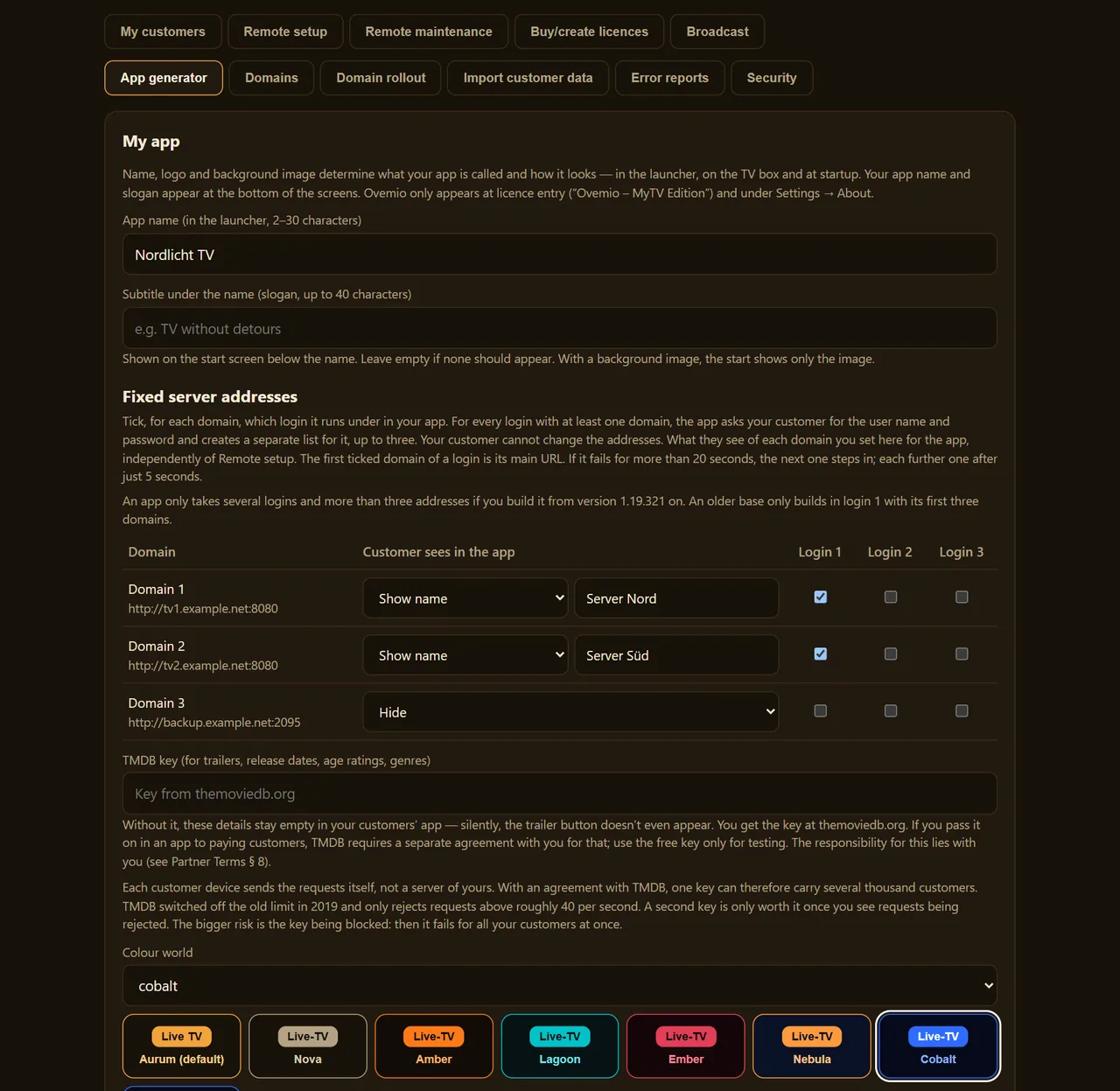
| App name and slogan | The name appears in the launcher, 2–30 characters; the slogan below it, up to 40 characters. Both appear at the bottom of the app’s screens. |
|---|---|
| Logo | PNG, ideally square. Appears in the menu, on the licence entry screen and as the icon. |
| Logo in the menu | Top left with the profiles below, or small at the bottom right with the profiles at the top. |
| App start-up | A still background image, a background image that slowly pulls back from a close-up, or your own intro video (up to 15 seconds). Sound is optional: for the video its own, for the image an MP3 file. |
| Colour world | Eight worlds with a preview. The customer can switch them in the app; this is the starting value. |
| Typeface | Only for the app name, with a preview. |
| Fixed server addresses | Up to ten domains from the “Domains” tab, each ticked for account 1, 2 or 3; the customer cannot change them. For each domain you choose whether they see the address, a name for it or nothing at all. If everything is hidden, they only enter user name and password, once per account. |
| TMDB key | Yours. Without it, trailers, year, age rating and genres stay empty in your customers' apps. |
Every build delivers the Android app (APK) and the Windows installer. There are two versions to choose from: the sales version, which the customer activates with a key, and the demo version. It comes with an account, runs straight away and locks itself after the set number of hours (1 to 720). Every demo that has been started then appears under “Active demos”; “Activate” puts a licence from your quota on that device.
The demo version needs a demo account of its own that you can block at any time — never the account of a real customer. Whoever takes the APK apart reads it; with an app that is meant to sign itself in, that cannot be prevented in principle.
Updates arrive automatically. When a new version of Ovemio comes out, we rebuild your sales version with the settings from your last build, and your customers’ apps update themselves just like Ovemio. You only need to rebuild if you change something yourself. The demo version does not receive updates.
The app generator becomes available with the first paid package (from 100 licences). Before the first build goes through, we review every account once in person, usually within hours. You can fill in and save everything beforehand; once approval is in place, you build with one click.
The “Domains” tab
The server addresses of your lines, up to ten, in the form http://name:port. Remote setup and the app generator take their addresses from here.
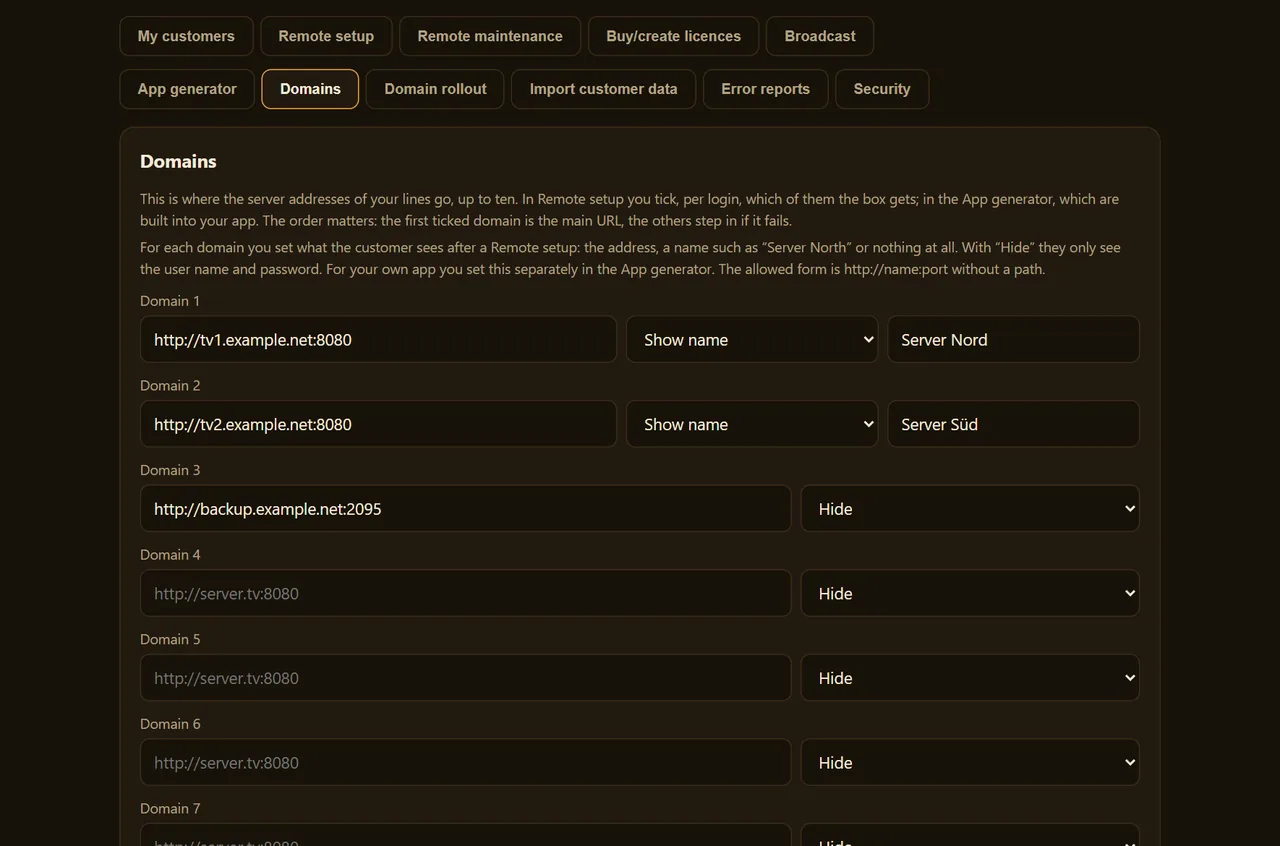
The order matters. The first ticked domain is the main URL; the others step in if it fails: the second after 20 seconds of outage, then each further one after 5 seconds.
For each domain you decide what the customer sees after a remote setup: the address, a name such as “Server North”, or nothing at all. With “Hide” they only see username and password. For your own app, you set this separately in the app generator.
The “Domain rollout” tab
If you change the server address, enter the new one here. Your customers’ apps pick it up by themselves at the next start — nobody has to type anything. Username and password stay as they are.
You choose which domain is replaced: one from your domain list or another address. The apps swap exactly that one in every list, in its place; the other addresses stay. Below you see what you have switched so far.
The “Import customer data” tab
Imports accounts from a CSV file from your panel. You enter the panel address, which applies to all rows, and choose the file.
The file does not leave your browser. It is read and encrypted there; only checksums and ciphertext go to the server. Username and password are never stored there in plain text.
The “Error reports” tab
Reports your customers have sent from the app, newest first, at most 100. The log in a report only loads when you click.
The “Security” tab
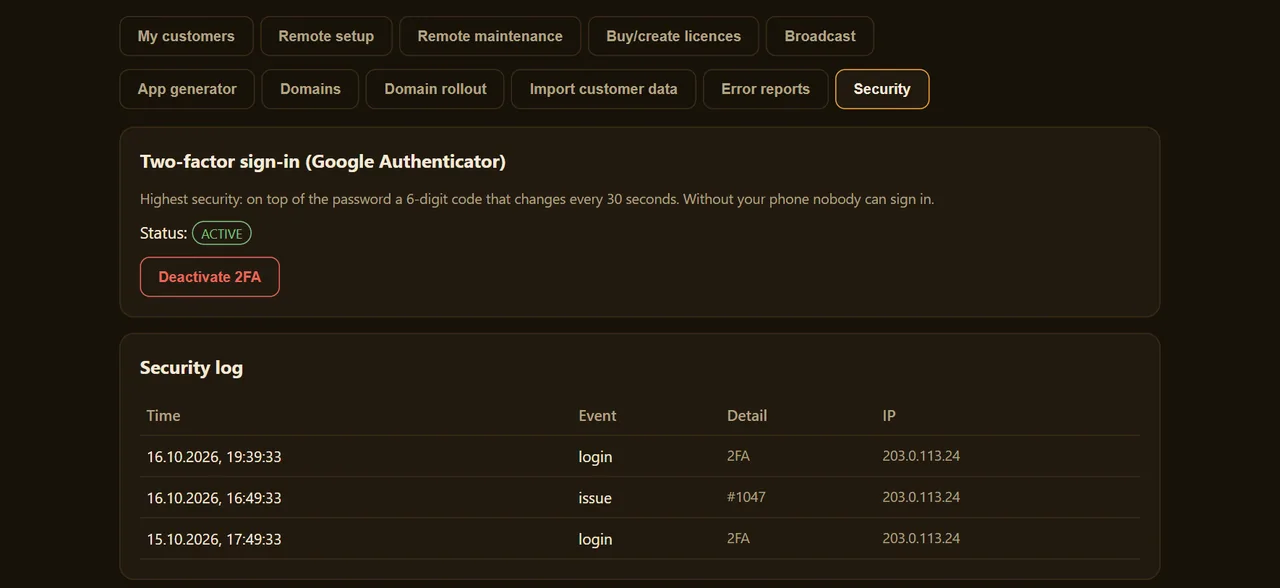
Here you set up two-factor sign-in. Below it is the security log: what happened with your account, with time and IP address.
The “Profile” button
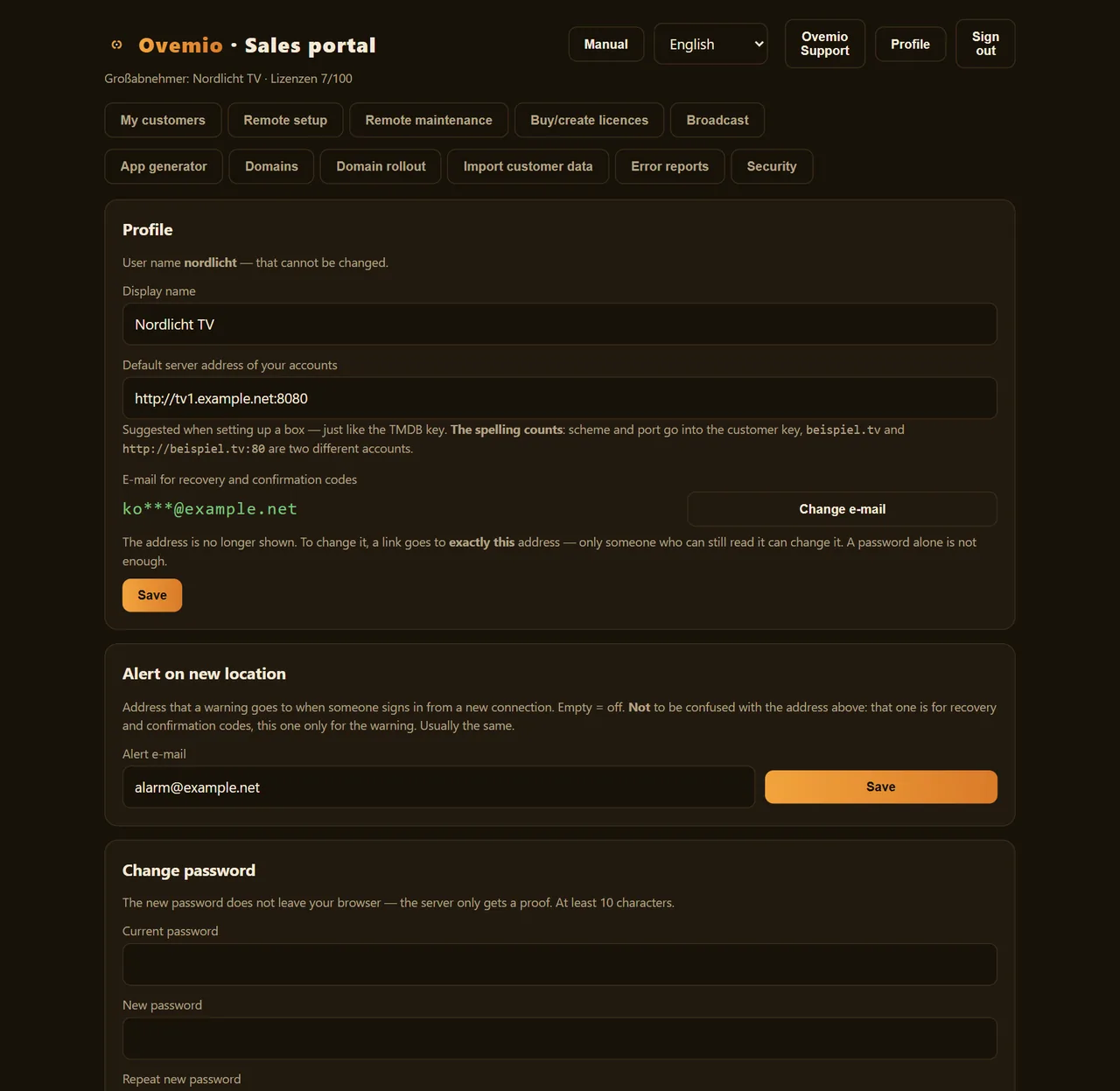
Top right. Here you find the display name, the default server address of your accounts, the e-mail for recovery and confirmation codes, an alert address for the warning when someone signs in from a new connection, and the password (at least 10 characters).
If a customer loses profiles
The server keeps a copy of every customer’s profiles once a day, and additionally before any larger loss. The customer restores them in the app themselves: Settings → Profiles → Restore profiles, choose a snapshot, tick the profiles. The backup is only opened on their device.