📖 User manual
Every area with a picture: where to find what and which key does what.
How the app is laid out
On the TV, the area bar sits on the left: Search, Live TV, Movies, Series, More and Settings. If you have switched on the start page in your profile, “Start” also appears above them. To the right of it are the categories of the selected area, and on the far right the content.
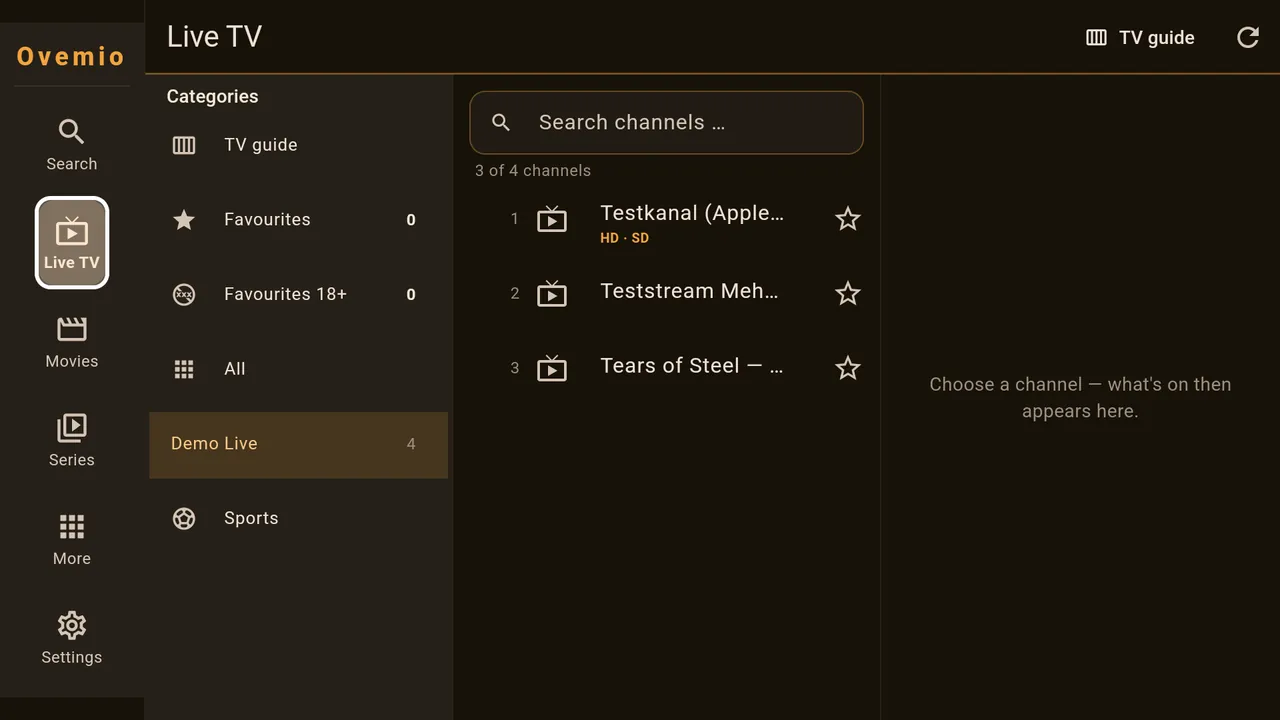
If you move right into the channel list or to the posters, the category bar folds into a narrow strip and makes room. Left brings it back. Back opens the area bar; press Back there once more and the app asks whether it should close.
On phones and tablets the area bar sits at the bottom. You pull in the categories with a swipe from the left edge.
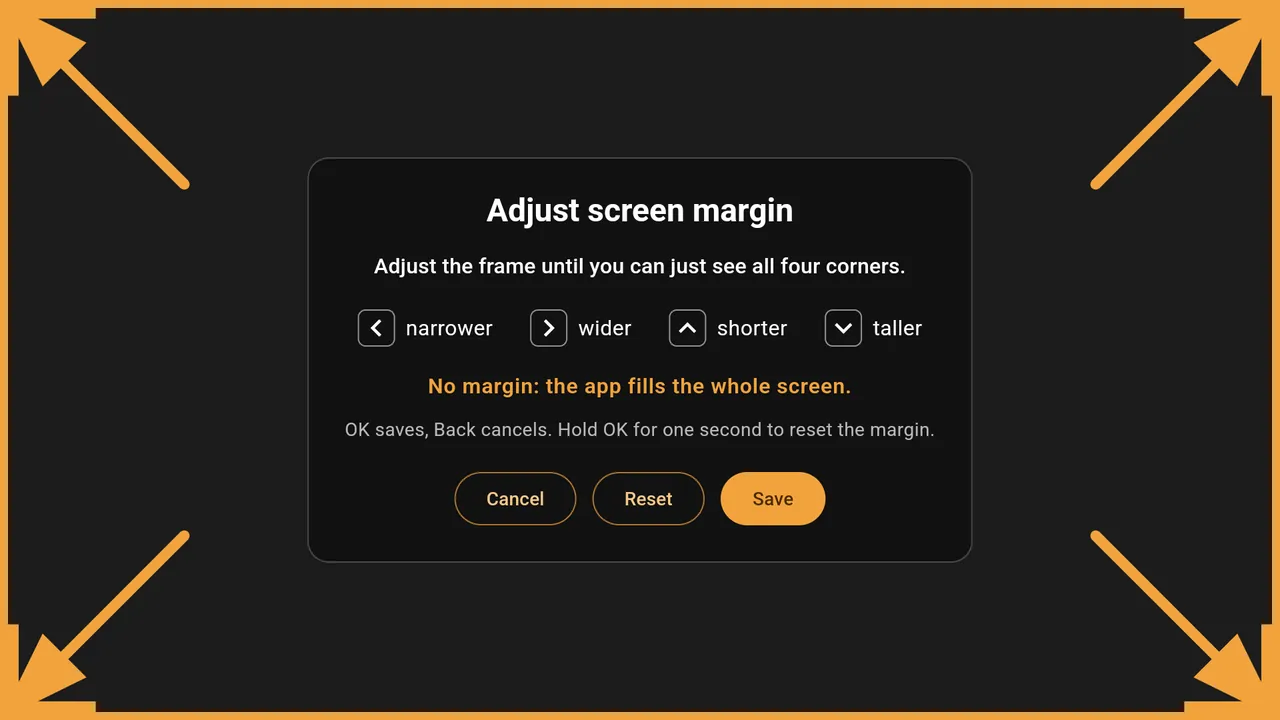
First start: can you see all four corners?
Where: appears the first time you start the app on a TV, later under Settings → Screen margin.
Some TVs cut a strip off the picture all the way round, and with it buttons at the edge. That is why Ovemio asks at the first start whether all four arrows reach into the corners. If they do: All good.
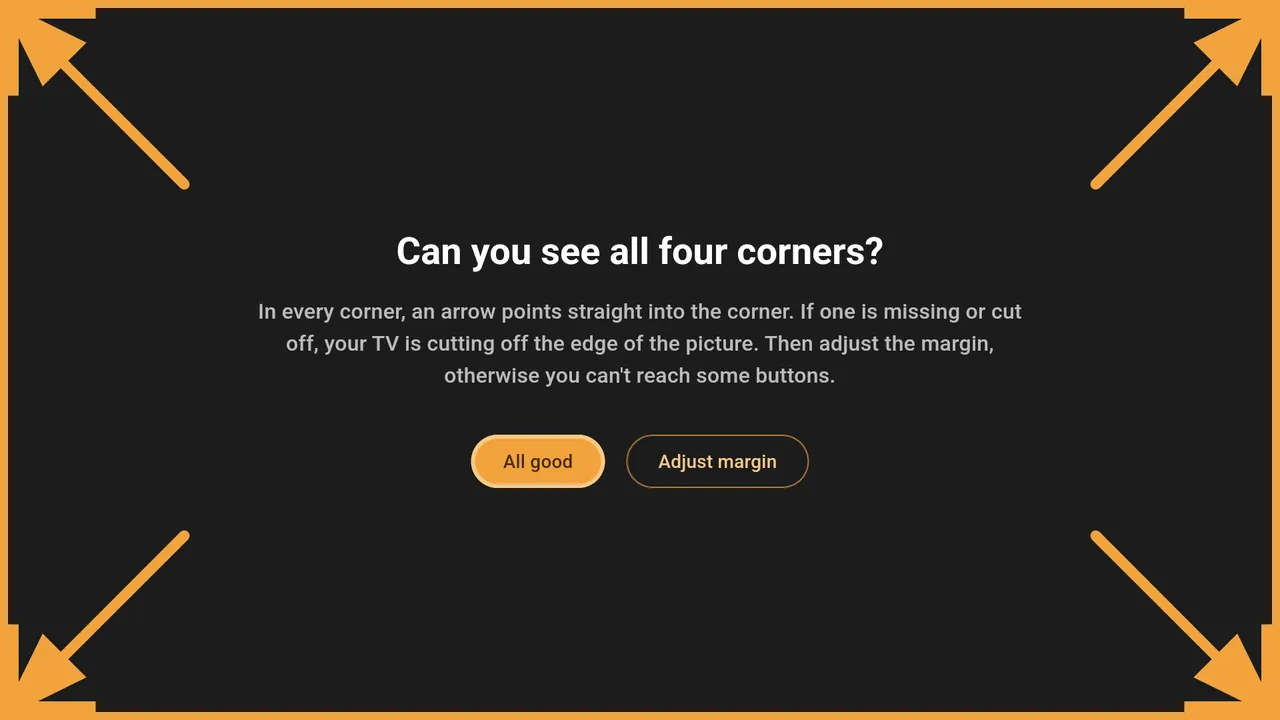
If a tip is missing, choose Adjust margin. Left makes the frame narrower, Right wider, Up lower, Down higher; holding a key repeats the step. OK saves, Back cancels. If you hold OK for one second, the margin goes back to zero. Channels and films still fill the whole screen in full screen; only the controls stay inside the frame.
Entering the licence
Where: appears at start as long as no licence has been entered; later under Settings → Licences and access → Licence.
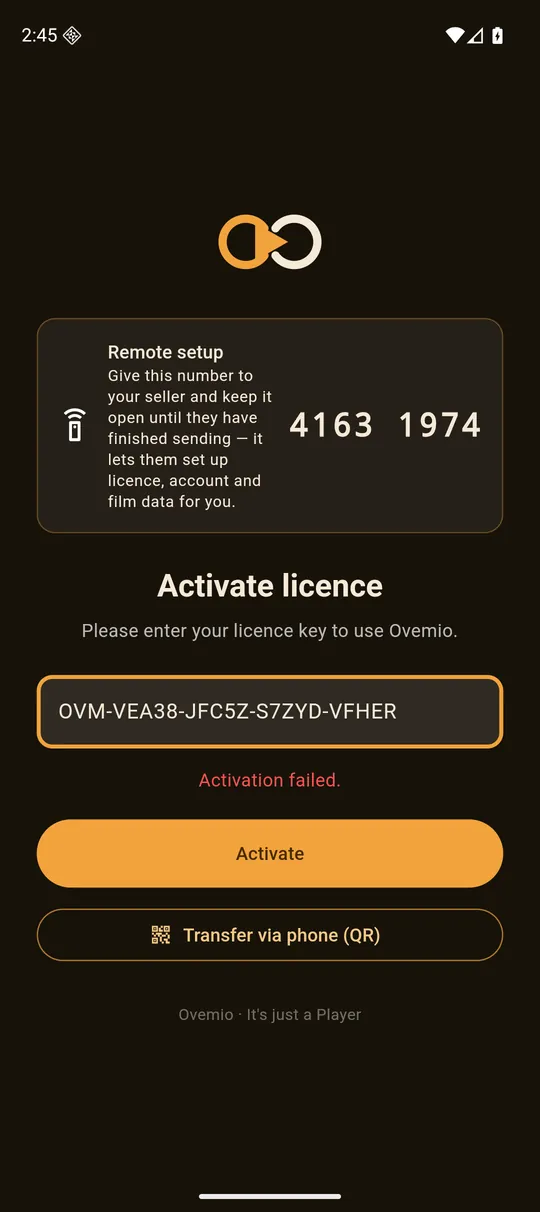
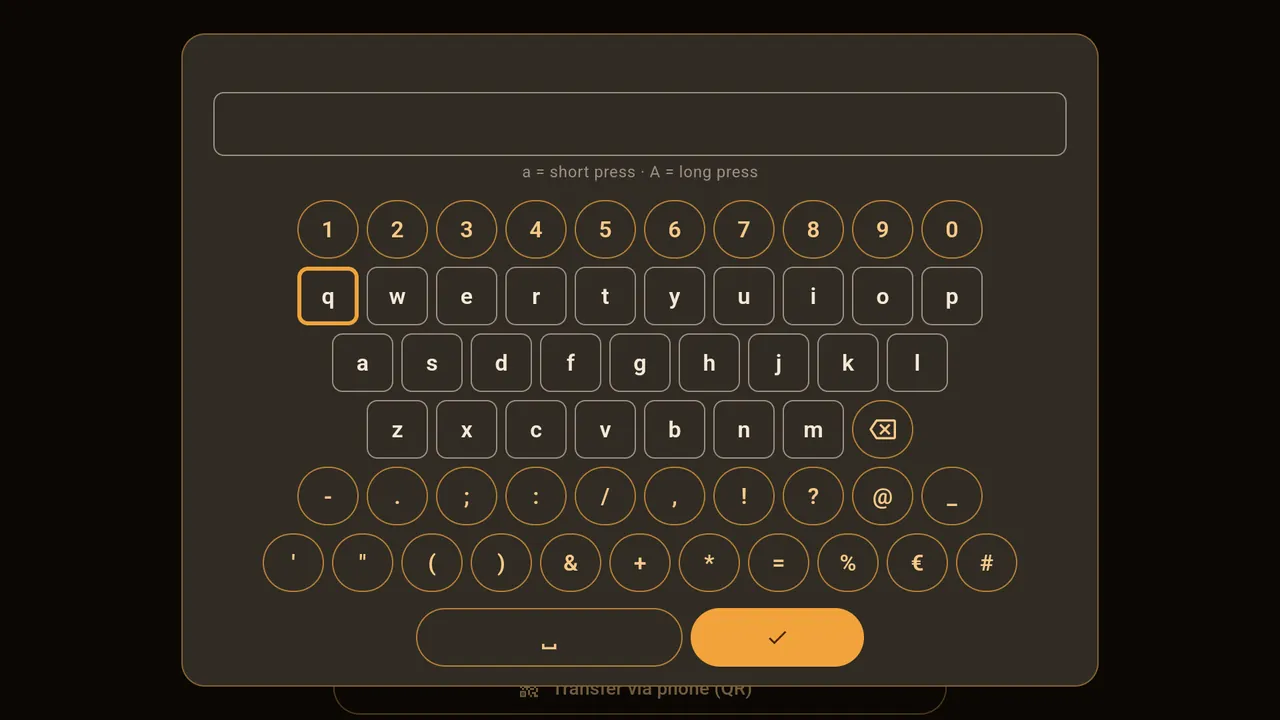
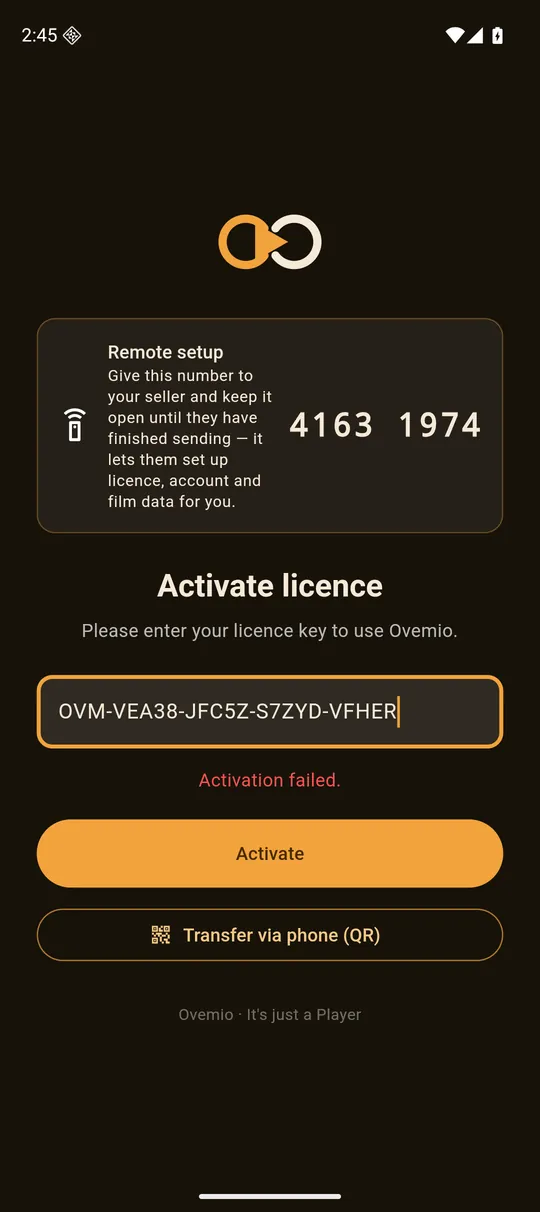
The key has the form OVM-XXXXX-XXXXX-XXXXX-XXXXX. On the TV, OK on the field opens the Ovemio keyboard. A short press types the lower-case letter, a long press the capital; the key with the cross deletes, the tick confirms.
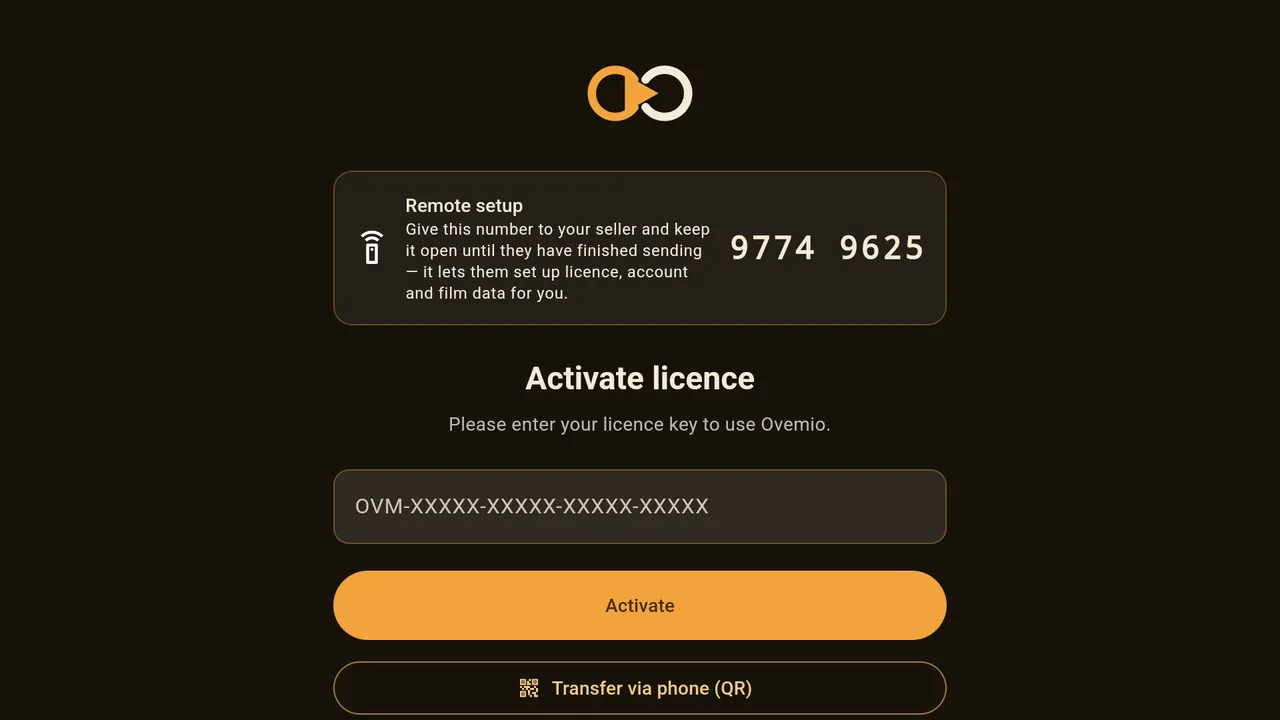
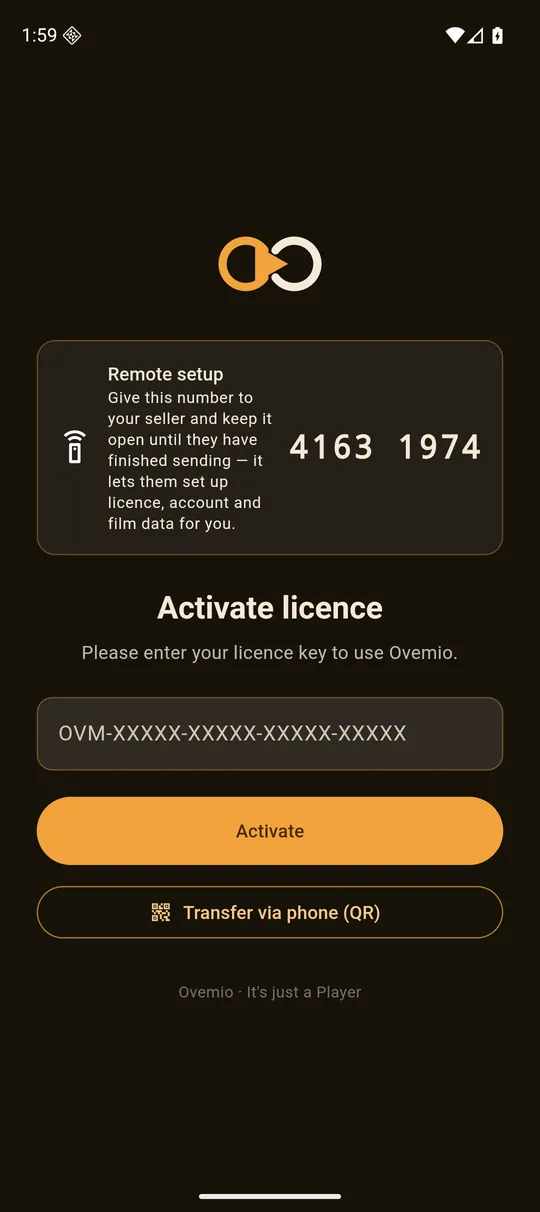
To do it without typing, use Transfer via phone (QR): the device shows a QR code. On the phone where the licence is already running, open Settings → Licences and access → Licence → Transfer to another device and scan it.
Remote setup. If you bought from a provider, they can enter the licence, access and film data for you. Give them the eight-digit number from the “Remote setup” card and leave the page open until they have sent everything.
To try it out without a key: see How to test Ovemio.
Entering your access
Where: appears after the licence; later under Settings → Licences and access → Add or change playlist.
At the top you choose the type of your access. Xtream needs the server URL, username and password. M3U only needs the address of the list. MAC is for access issued to a device ID. You get all the details from your provider; Ovemio itself comes without any channels.
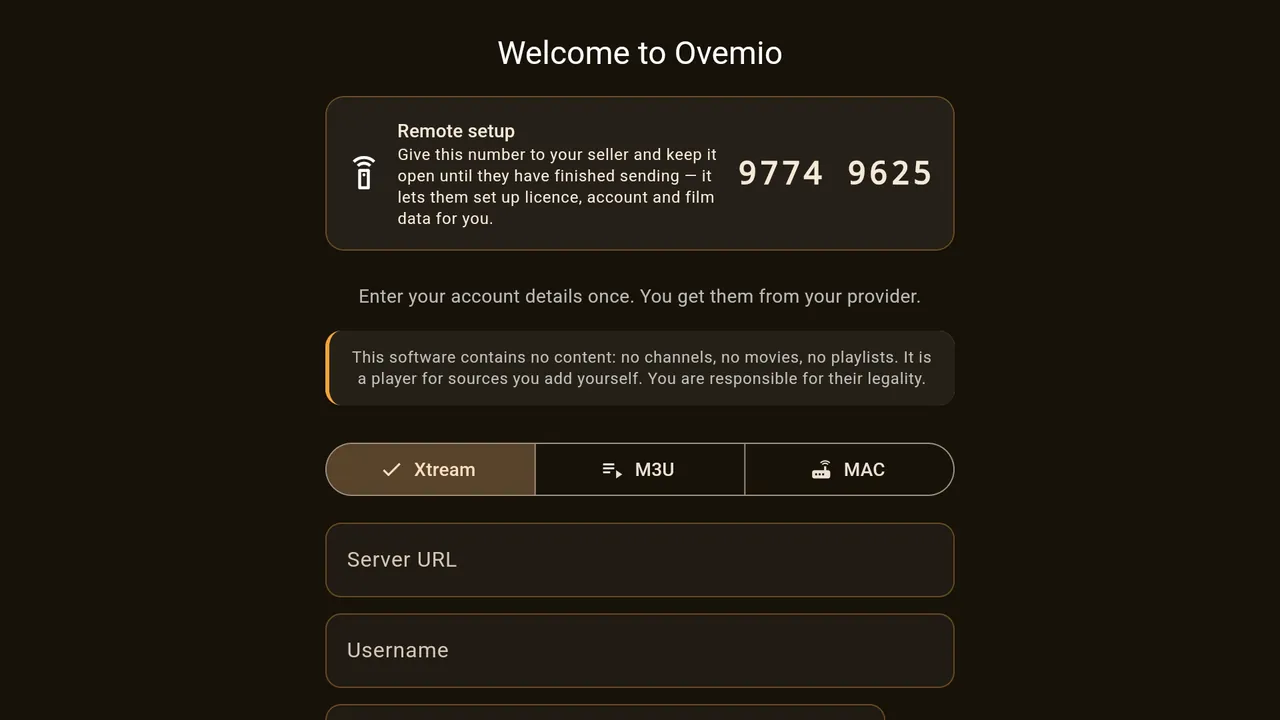
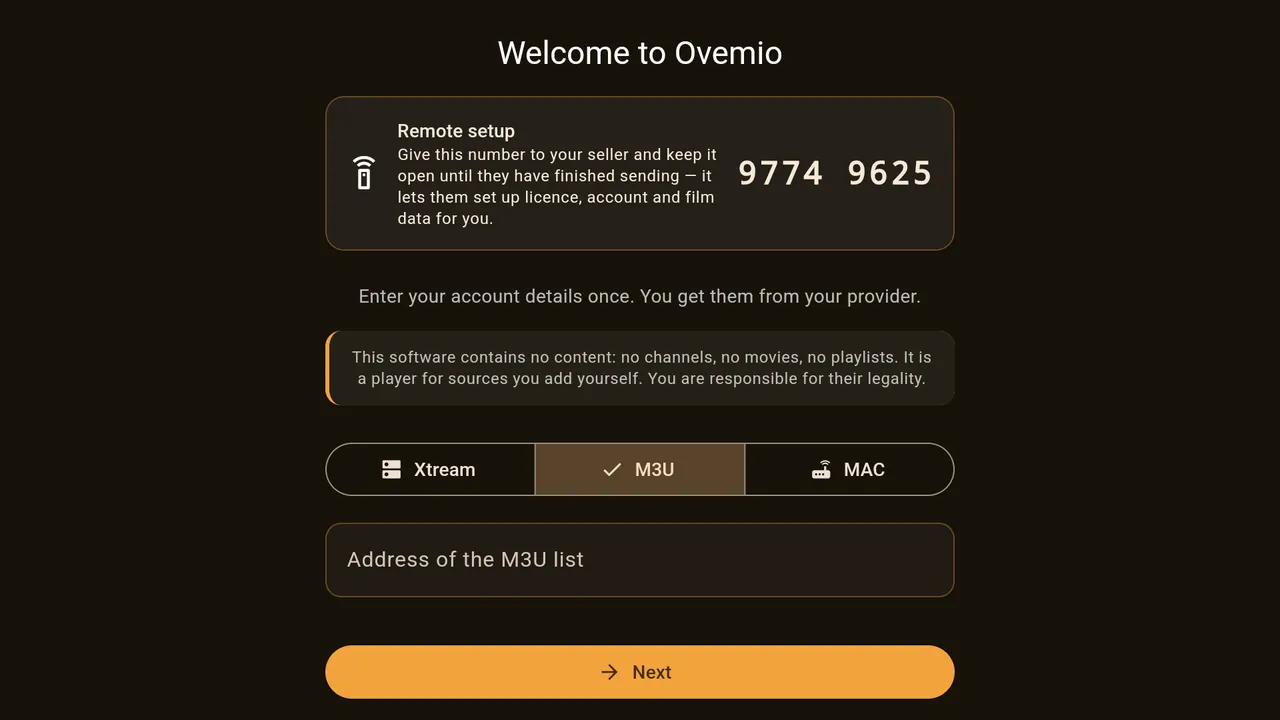
Typing a server address with the remote costs time and nerves. Faster: you enter the access in Ovemio on your phone, choose Settings → Licences and access → Add or change playlist → Transfer to box there and scan the QR code that the box shows under Pair with phone (no typing). Instead of the QR code you can also use the twelve-digit code below it.
Continue without an account works too: radio and your own media play without a provider.
Film data (TMDB)
Where: the notice appears once after setup; later under Settings → Licences and access → TMDB add-on.
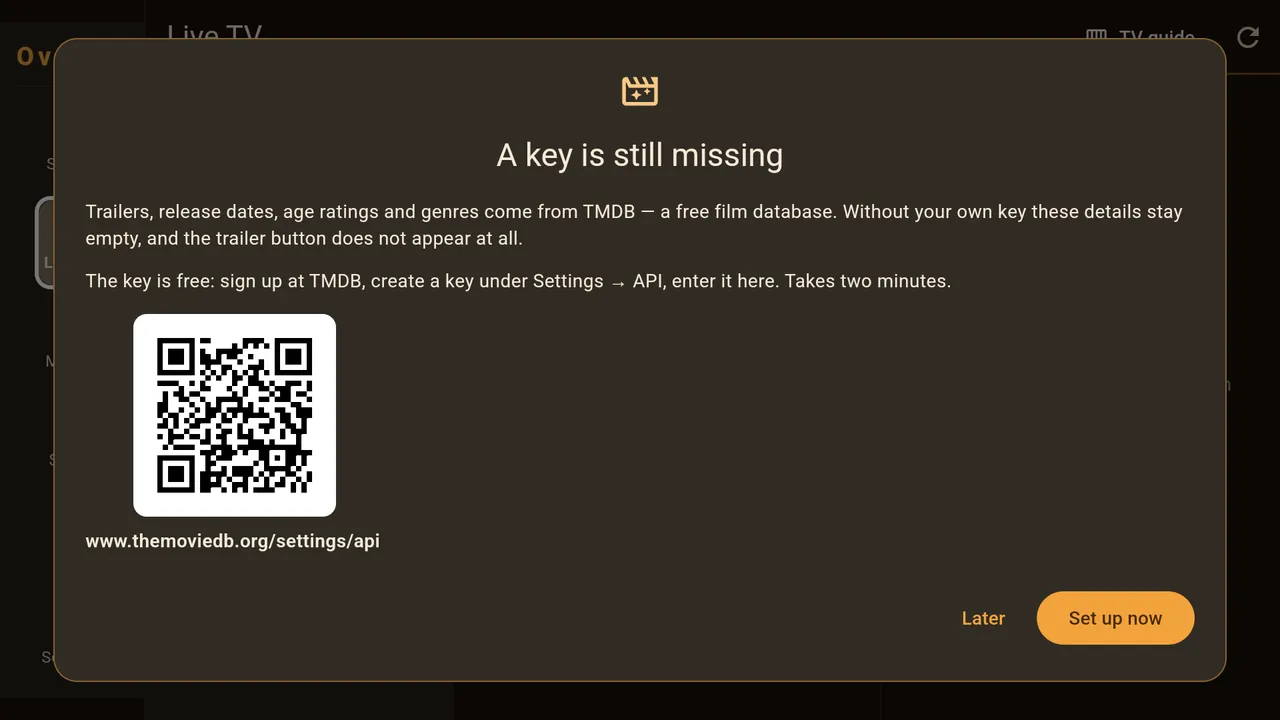
Trailers, release date, age rating and genres come from the free film database TMDB. For this you need your own free key. On a phone, the QR code in the notice takes you straight to the page where you create it. Without a key everything works; only this information stays empty and the trailer button does not appear.
Live TV
Where: area bar → Live TV.
Up and Down move from channel to channel; at the end of the list the highlight jumps to the other end. The first OK starts the preview on the right, the second OK on the same channel opens full screen. If you stay on a channel for two seconds, the preview starts even without OK.
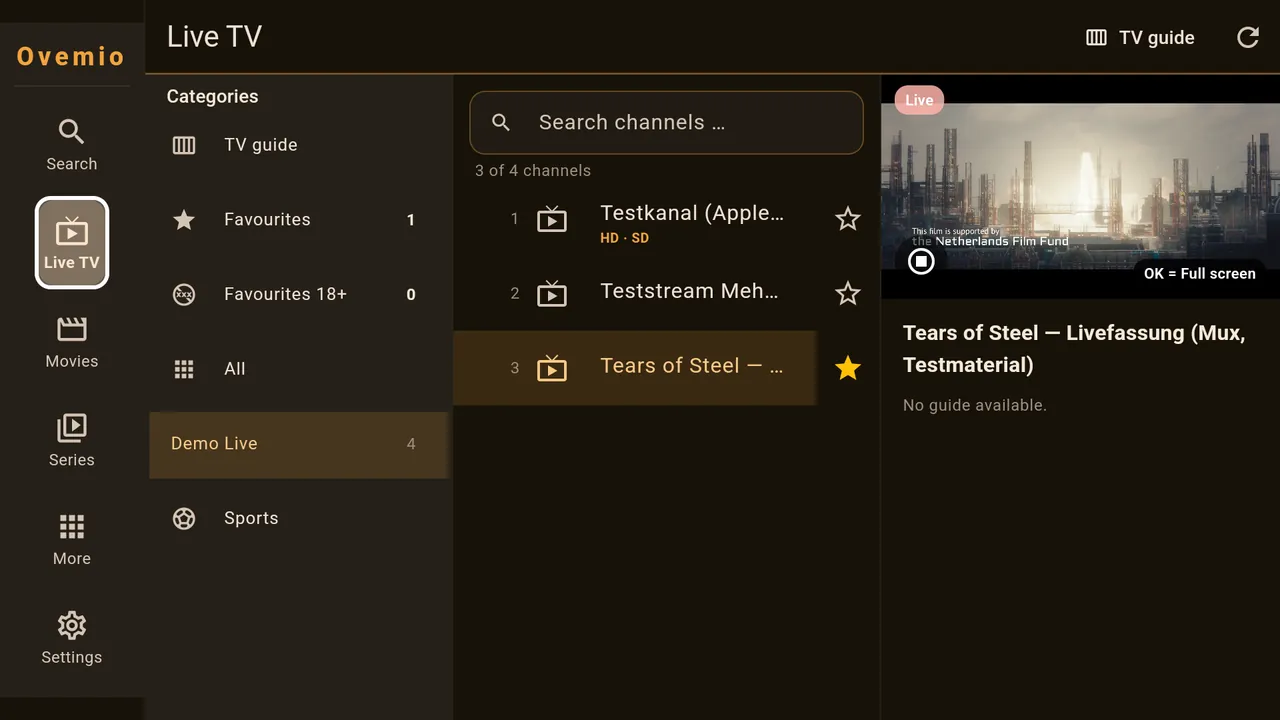
To the right of the channel list you reach the star; Right once more takes you into the preview. There, Up and Down scroll through the programme info; below the text is the stop button, which only switches off the preview. Up in the top row takes you to the “Search channels …” field.
On a phone there is no room for the preview: tapping opens full screen straight away. On a tablet the preview sits on the right in landscape and above the list in portrait.
Categories and favourites
The bar starts with TV guide, Favourites, Favourites 18+ and All. Then come your provider’s categories, and at the end Sports. If channels were added in the last 28 days, “New channels” also appears in front.
A channel becomes a favourite with the star to the right of its name. Adult channels go separately into Favourites 18+; the app recognises them by the name of the channel or the category. In a kids profile this entry is missing. If you have favourites, Live TV opens there at start.
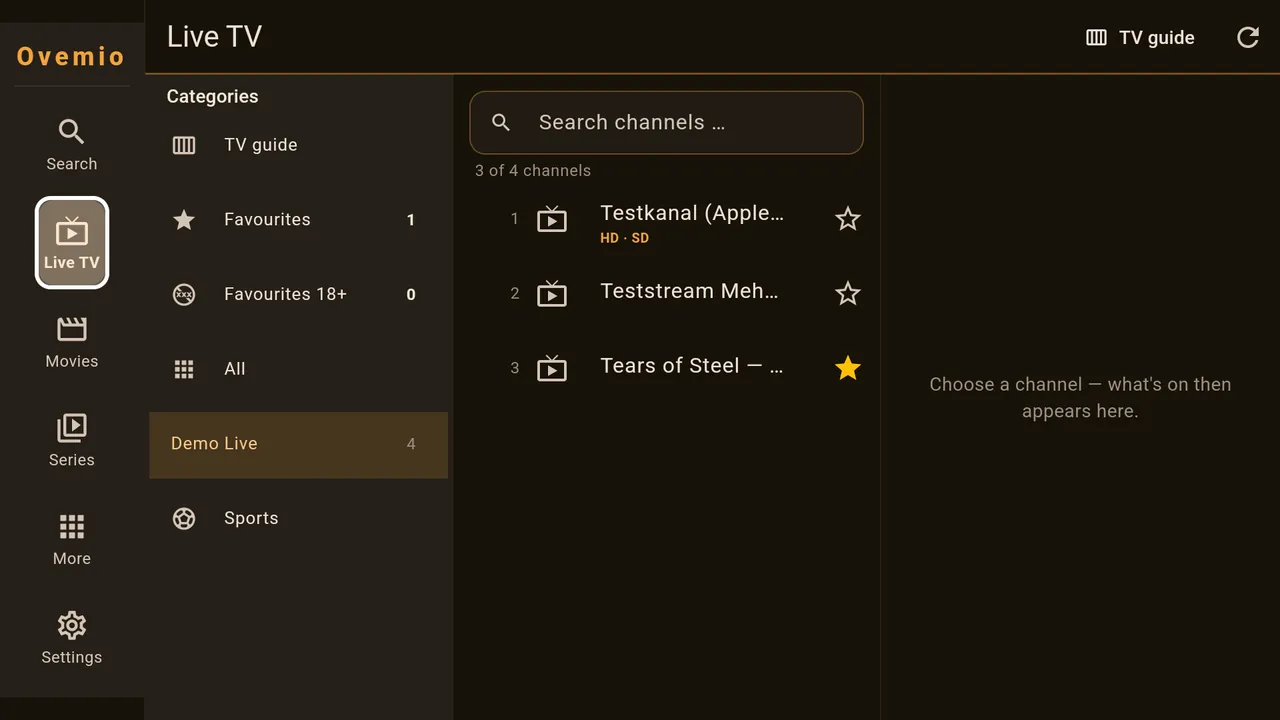
If you hold Up or Down, the highlight jumps in steps of three. If you stop briefly on a category, the list next to it already shows its channels; OK or Right switches into it.
Hiding or reordering categories: Settings → Profiles → your profile → Manage subcategories, then Live TV, Movies or Series. The tick shows and hides, the arrows move a category one place or all the way to the top or bottom. Hidden does not mean deleted: search still finds the channels.
Full screen
Up or Channel+ switches to the next channel in the list, Down or Channel− to the previous one. Left takes you back to the channel list, Right opens the TV guide at the current channel. OK shows the control bar; after five seconds without a key press it disappears again.
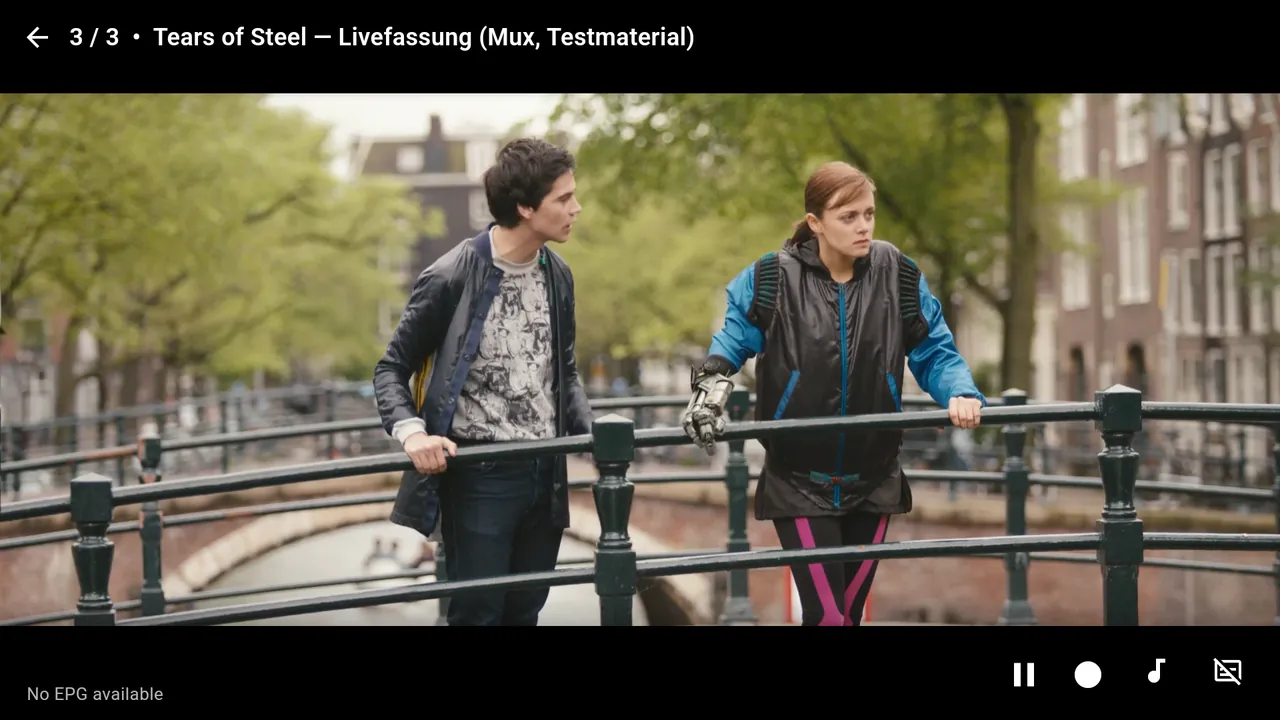
In the bar, from left to right:
- Pause pauses. If your provider has an archive for the channel, playback then continues from where you paused, otherwise live.
- Restart programme and Back to live only appear for channels with an archive.
- Record (the dot) offers the current programme or 30, 45, 60, 90 or 120 minutes. While recording, “REC” with the size appears at the top right; a second press stops it.
- Quality (SD, HD, FHD, 4K) appears when the channel is available in several versions.
- Audio track (the note) and Subtitles.
On a phone a horizontal swipe switches channels: to the left for the next one, to the right for the previous one. Tapping shows the bar.
TV guide
Where: Live TV → TV guide in the category bar or at the top right; from full screen with Right.
The grid runs from one hour back to 26 hours ahead and opens at “now”. Your provider supplies the programme data; if it is missing, the row stays empty. The magnifying glass at the top right searches for programmes.
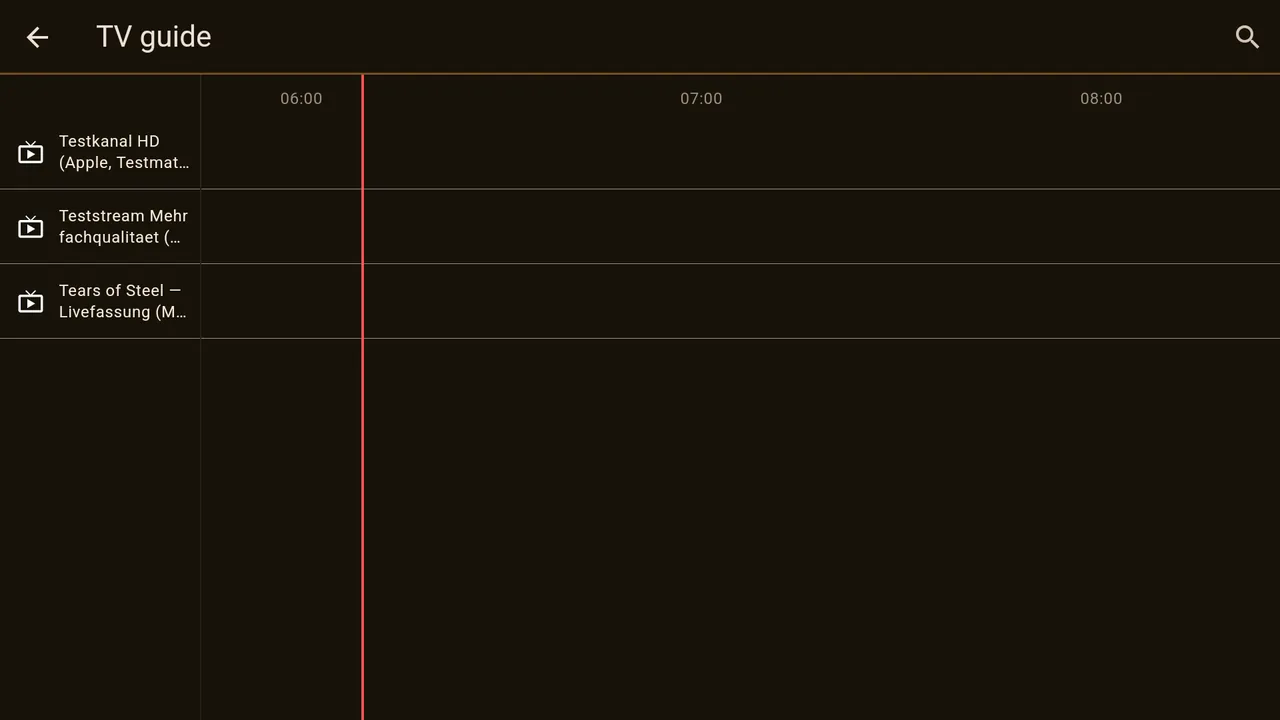
OK on a programme shows its description and Watch channel. If the programme is not over yet, Record now or Schedule recording also appears there.
A scheduled recording only starts if Ovemio is open at that time.
Sports
Where: Live TV → Sports (last entry in the categories) or More → Sports.
On the left are the sports with the number of matches, on the right the matches of the next eight days: “LIVE” or day and kick-off time, for matches in progress the score with the minute played, plus league and channel. The funnel icon at the top right narrows it down by country and league.
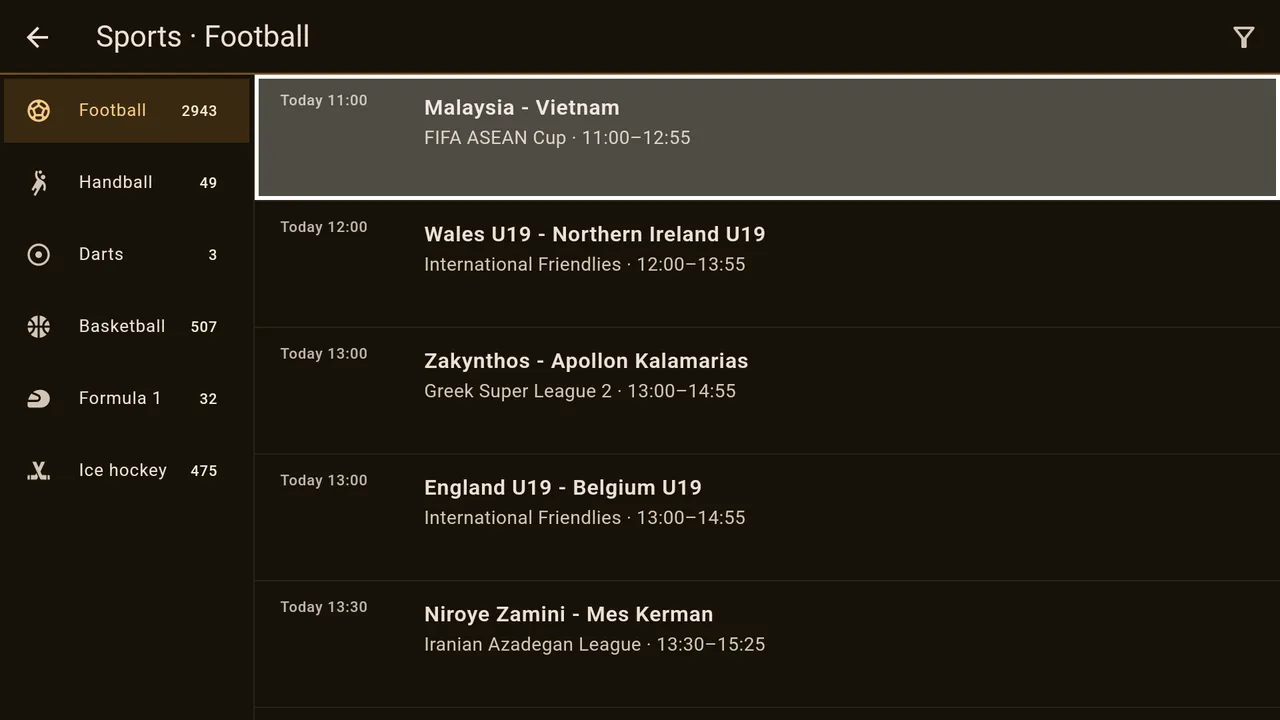
OK on a match in progress switches to the channel. If several channels show it, the app asks which one you want to watch it on. If it only starts later, you can schedule the recording.
Ticker with goals. Under Settings → Profiles → your profile → Sports – my selection you decide what a ticker at the top of the picture reports on: nothing, only your favourite clubs, your whole selection or all matches in progress. The “Also report every goal” switch adds the goals.
Movies
Where: area bar → Movies.
On the left are Continue watching, Watchlist, All, <24h new and then your provider’s categories. “Continue watching” and “Watchlist” collect across all categories. “<24h new” shows what your provider has added in the last 24 hours, newest first. If you have started a film, the area opens at Continue watching.
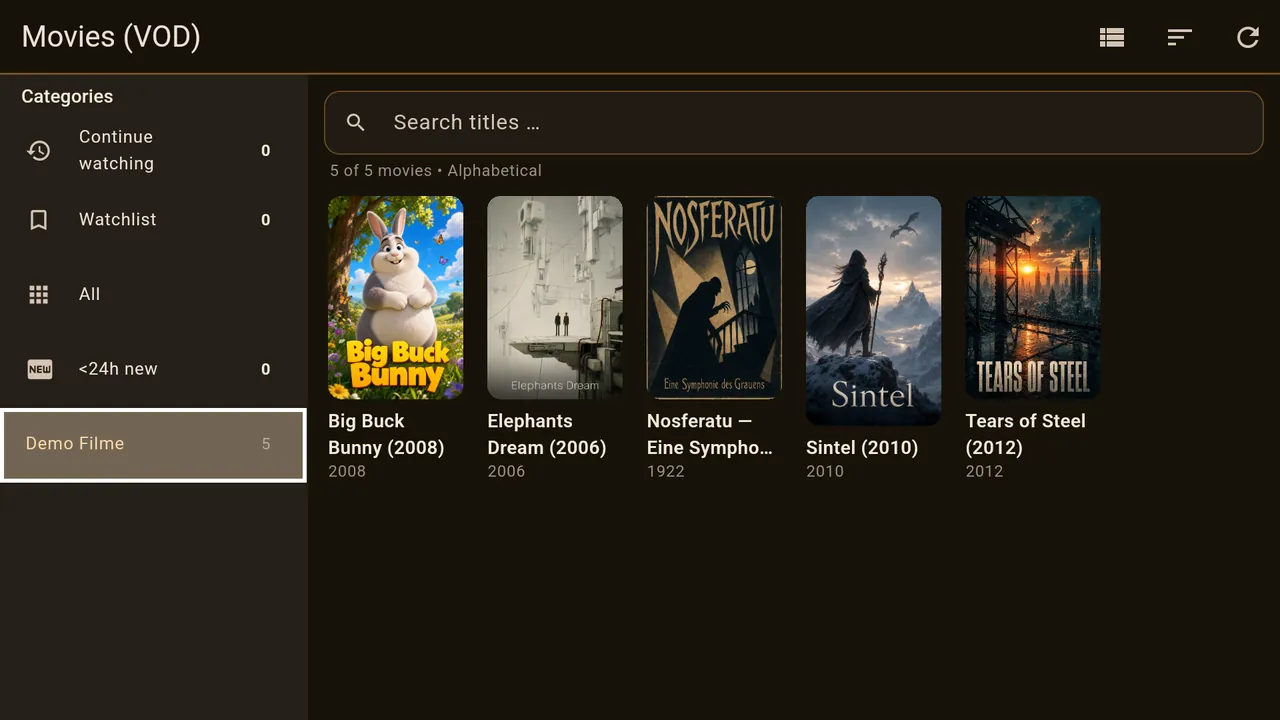
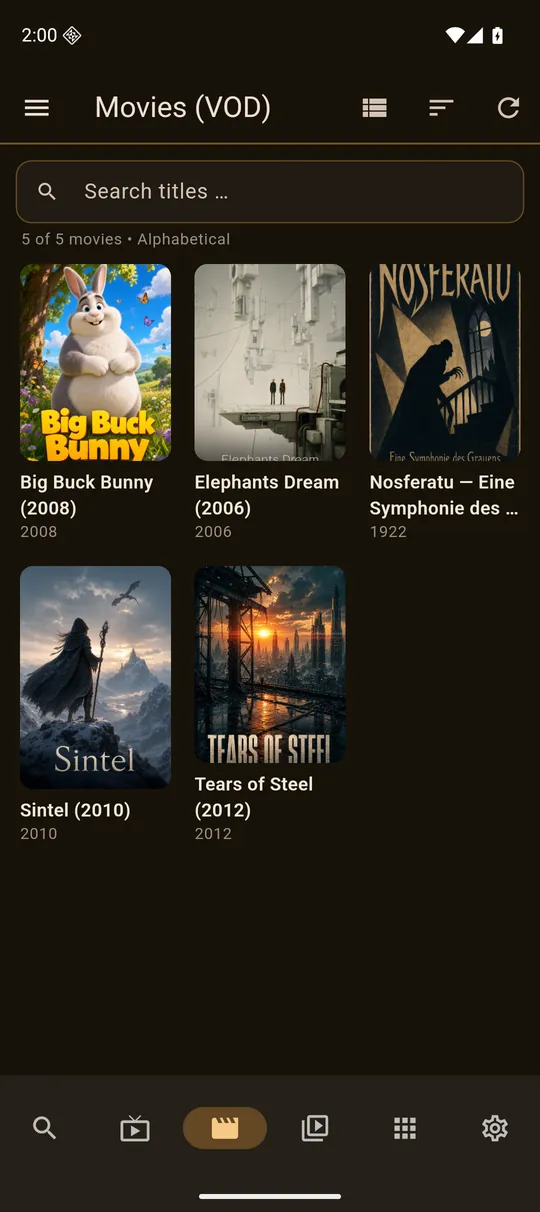
At the top right you switch between list and poster grid and sort alphabetically, by “Recently added” or by release date. The “Search titles …” field above it filters the list.
The Menu key on the remote or a long press on a poster saves the film for later. Under Continue watching, OK opens a small menu: resume, play from the start, remove from the list or save for later.
The film page
OK on a poster opens the film page with description, year and — with a TMDB key — cast and age rating.
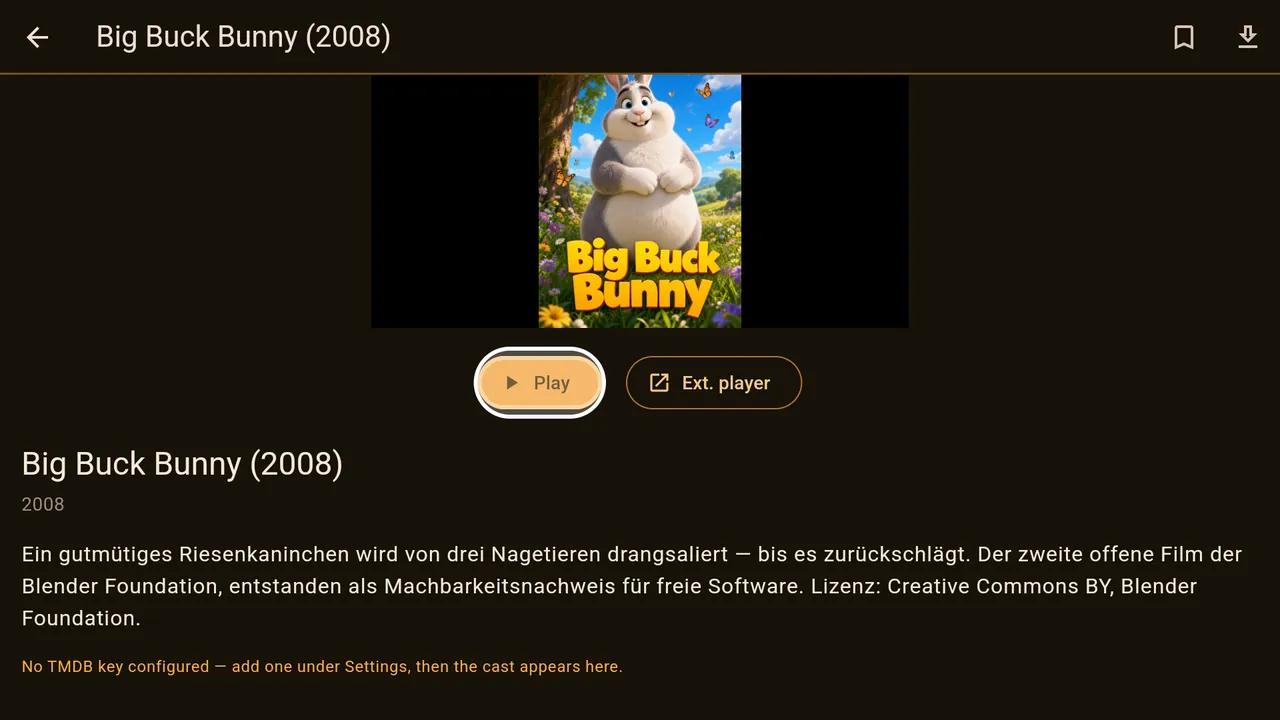
- Play, and for films you have started, Resume at with the point where you stopped.
- Ext. player hands the film, including the position, over to another player. The button only appears if one is installed.
- Watch trailer appears when TMDB knows one.
- The bookmark at the top right saves the film for later.
- The down arrow downloads the film to your recordings folder. A second press asks whether you want to cancel; the part downloaded so far is then deleted.
If the film belongs to a film series, Ovemio asks at the end whether the next part should start.
The film player
Left and Right jump one minute per press; held down, it moves one minute per second. OK pauses and resumes. Up shows the bar with the back arrow, Down the bar with the focus on Play.
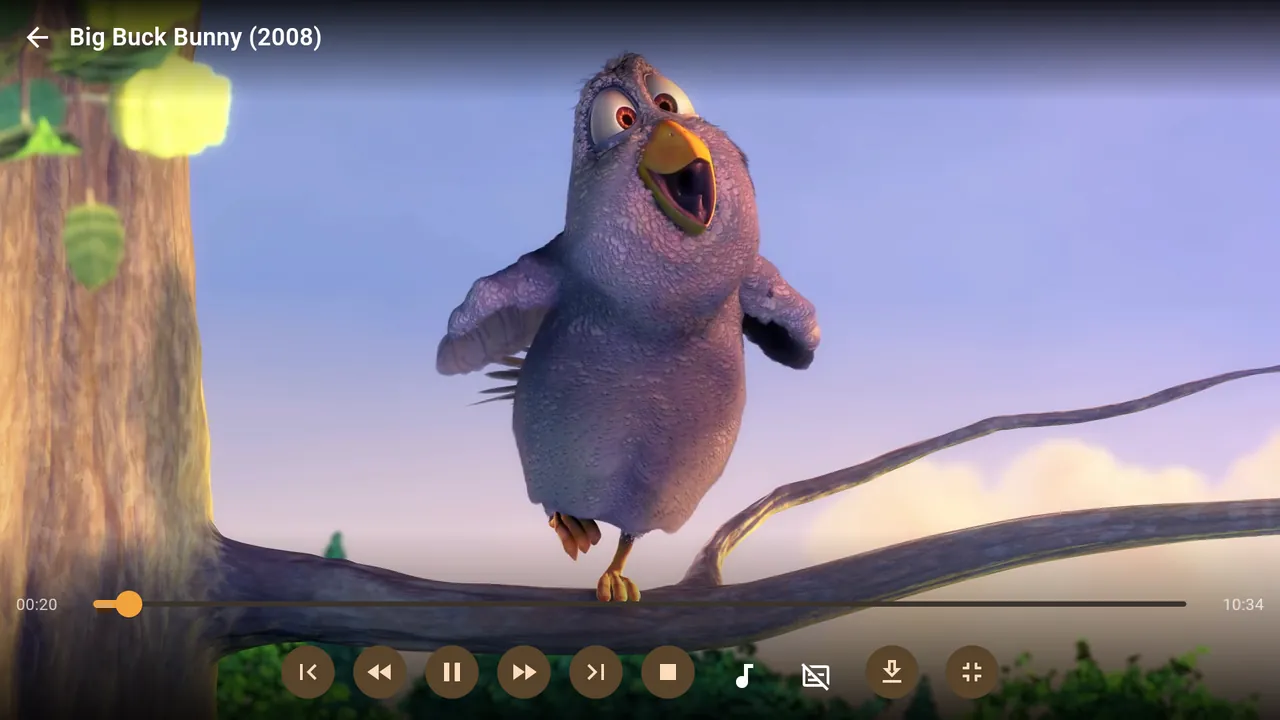
The buttons from the left: to the start, rewind, play/pause, fast forward, to the end, stop, audio track, subtitles, download and full screen. The rewind and fast-forward buttons get faster with each press (1, 10, 60 seconds per second); the next press stops the winding. If the film is available in several versions, the quality selection sits in between.
If your remote assigns the keys differently, you can teach them to Ovemio: Settings → Playback → Controls → Learn remote keys.
Series
Where: area bar → Series.
Laid out like the movies. Sorting is alphabetical, by year (newest first) or by rating.
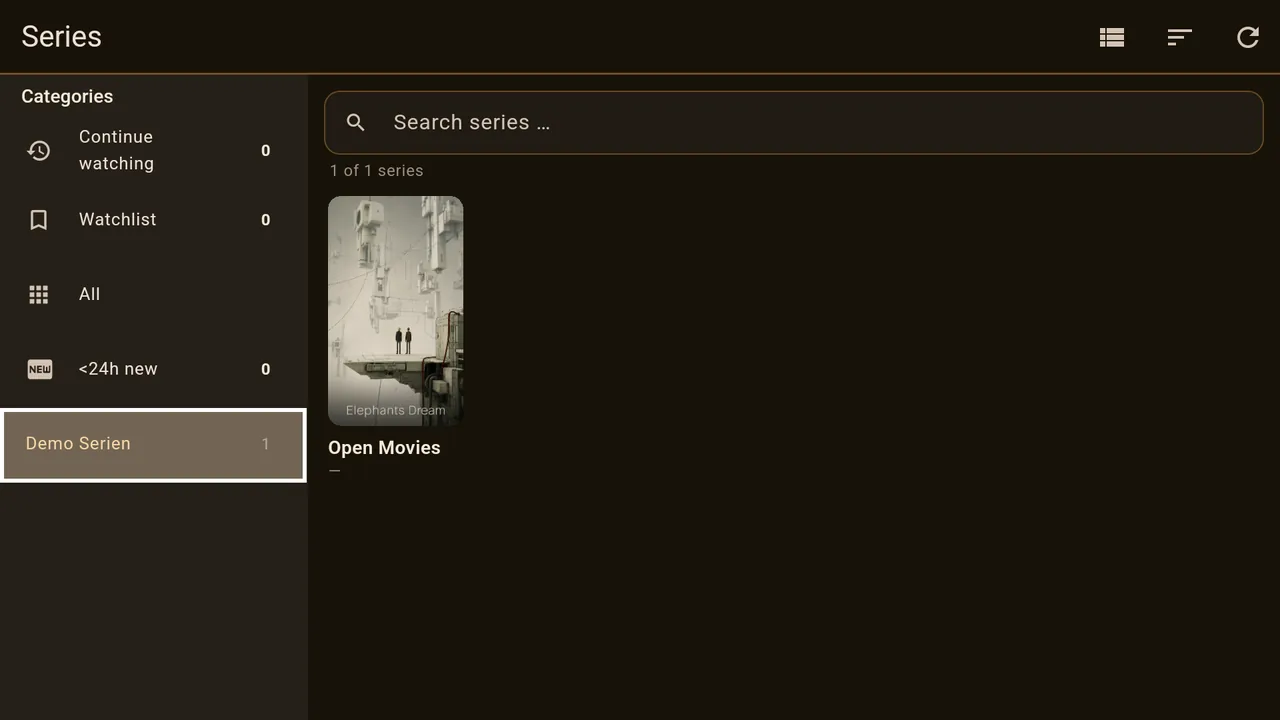
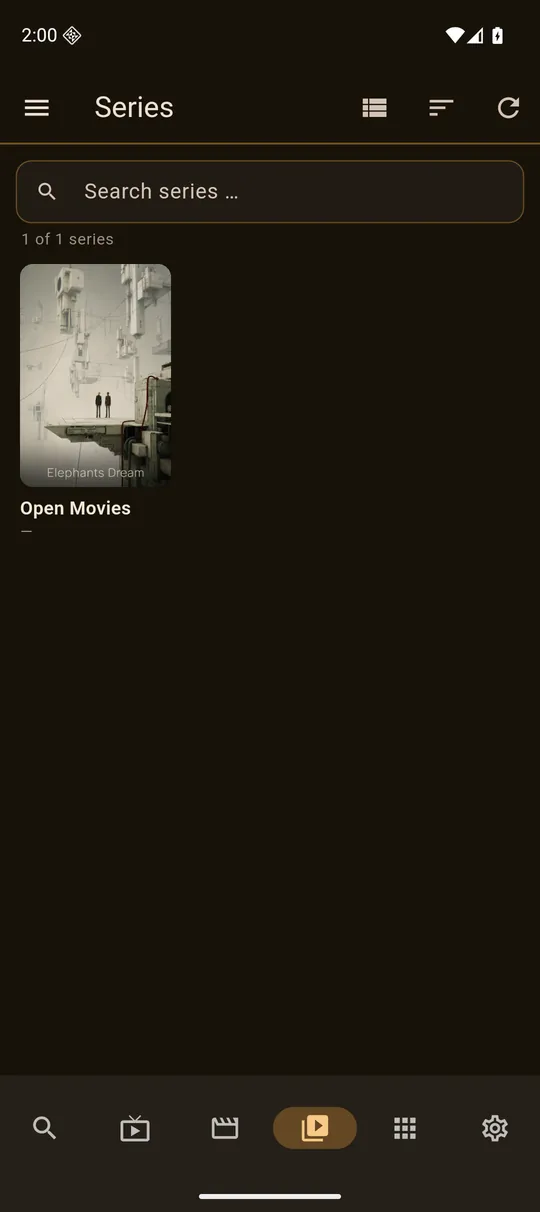
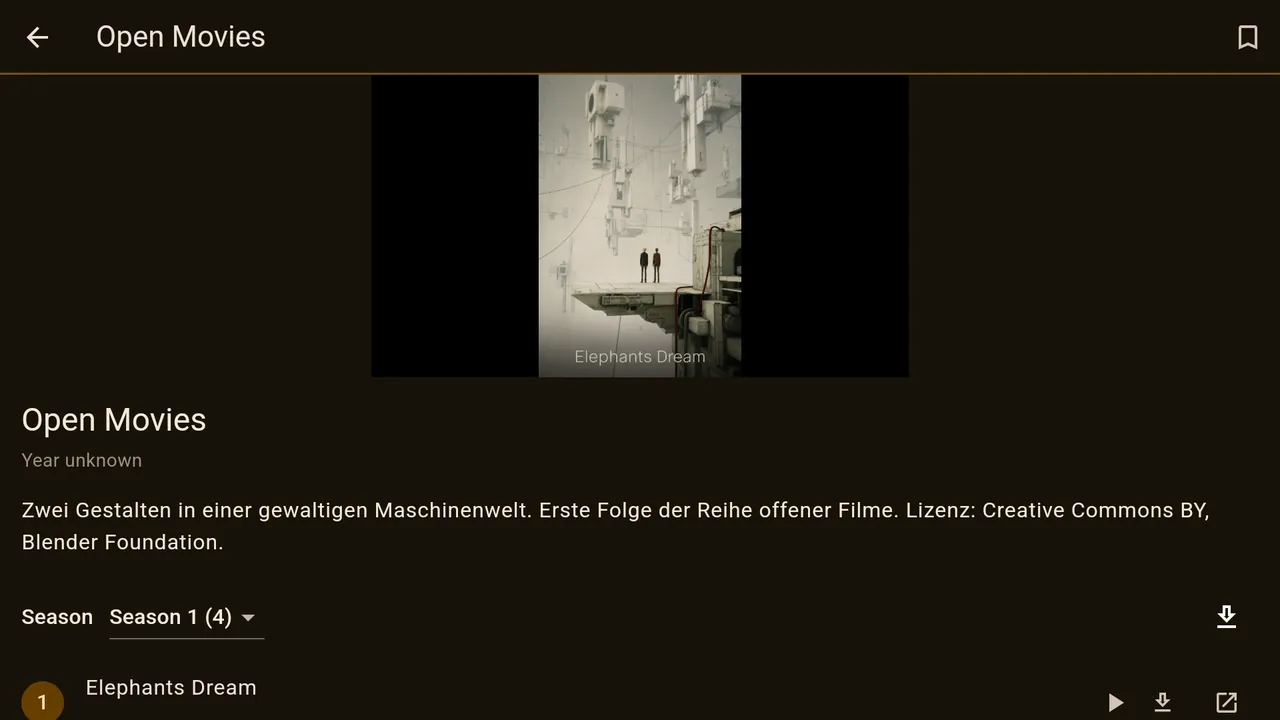
On the series page you choose the season at the top. Each episode has Play, Download and Ext. player on the right; the arrow next to the season selection downloads the whole season or the complete series. If you have started watching, “Resume” appears at the top with episode and minute.
In the last two minutes of an episode the Next episode button appears and gets the focus. It only jumps when you press OK; Back hides it for this episode. If the episode runs right to the end, the next one starts by itself. If you don’t want to see the button, switch it off under Settings → Playback → Next episode.
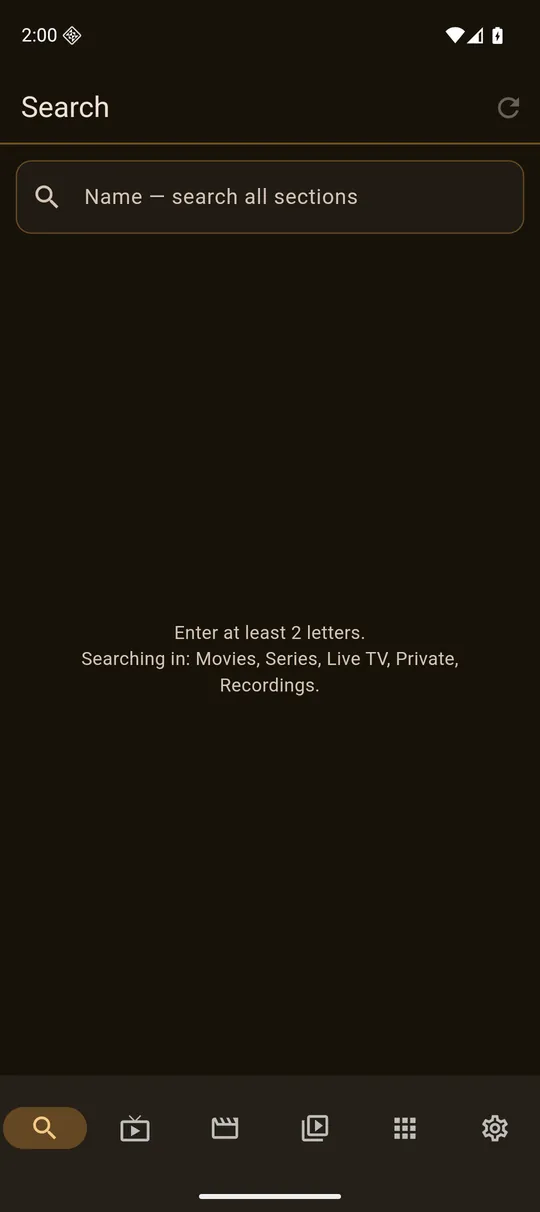
Search
Where: area bar → Search.
From two letters on, Ovemio searches movies, series, Live TV, Private and Recordings at the same time and shows up to 50 results per area. If you open a channel from the results, in full screen you only switch between the channels that were found.
More: Radio, Private, Recordings
Where: area bar → More.
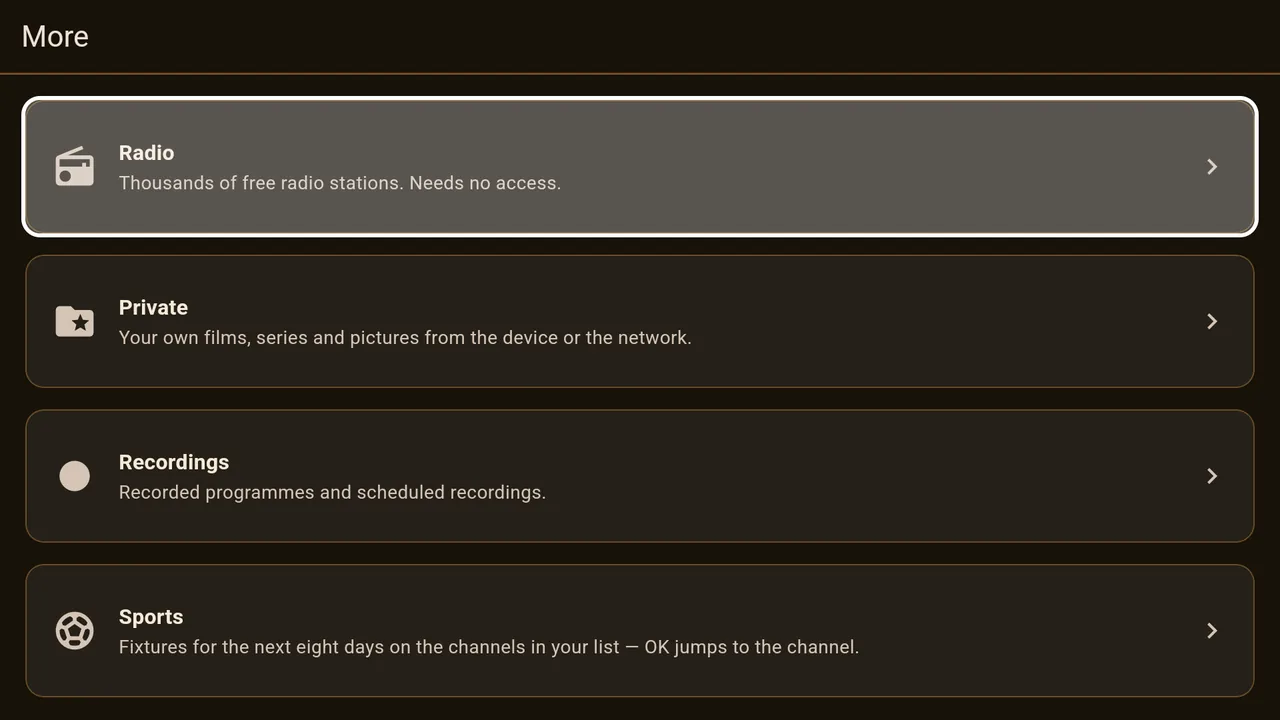
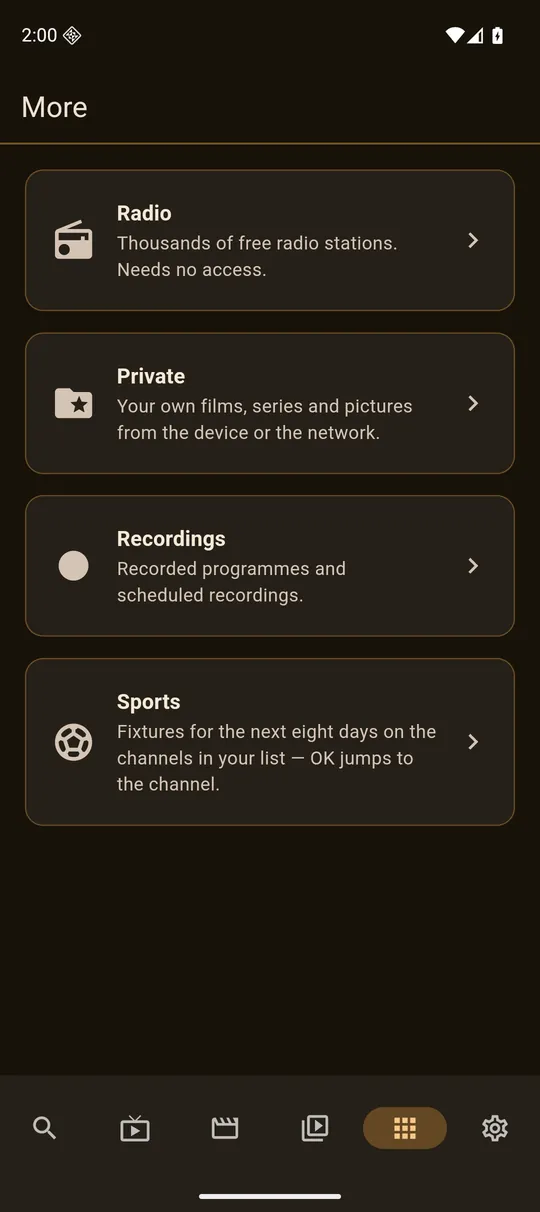
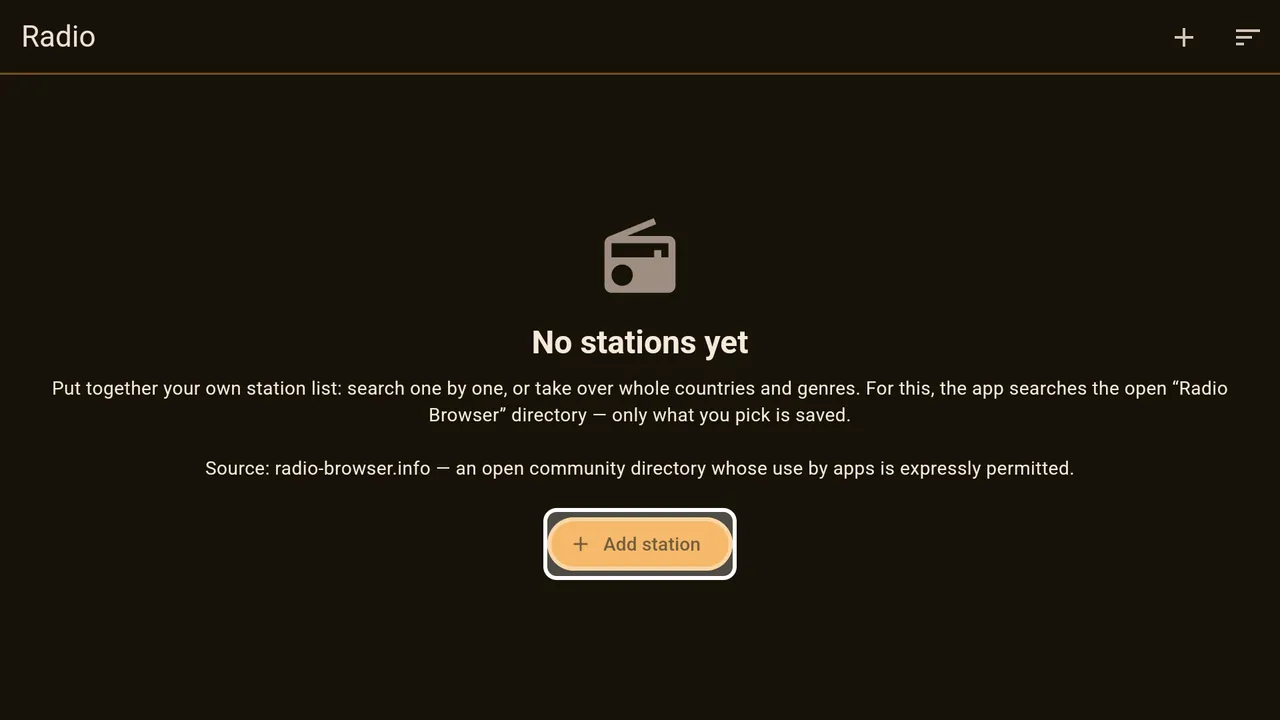
Radio needs no access and starts empty. Add station opens the open directory radio-browser.info: sections such as Germany, Austria, Switzerland, Pop, Rock, Schlager or News, a search across the whole directory, a plus for each station and “Take over all”. In your list the star marks favourites; you can sort by your own order, A to Z or quality. In the radio player, Left and Right change the station.
Private plays your own films, series and pictures: from a folder on the device, from an SD card or USB stick, via HTTP/WebDAV or FTP. Windows shares (SMB) are not supported.
Recordings shows three sections: scheduled, running, saved. You set where recordings are saved under Settings → Recordings; if you choose nothing, it is Downloads/IPTV-Aufnahmen. On a box, a USB stick is the better choice than the internal storage.
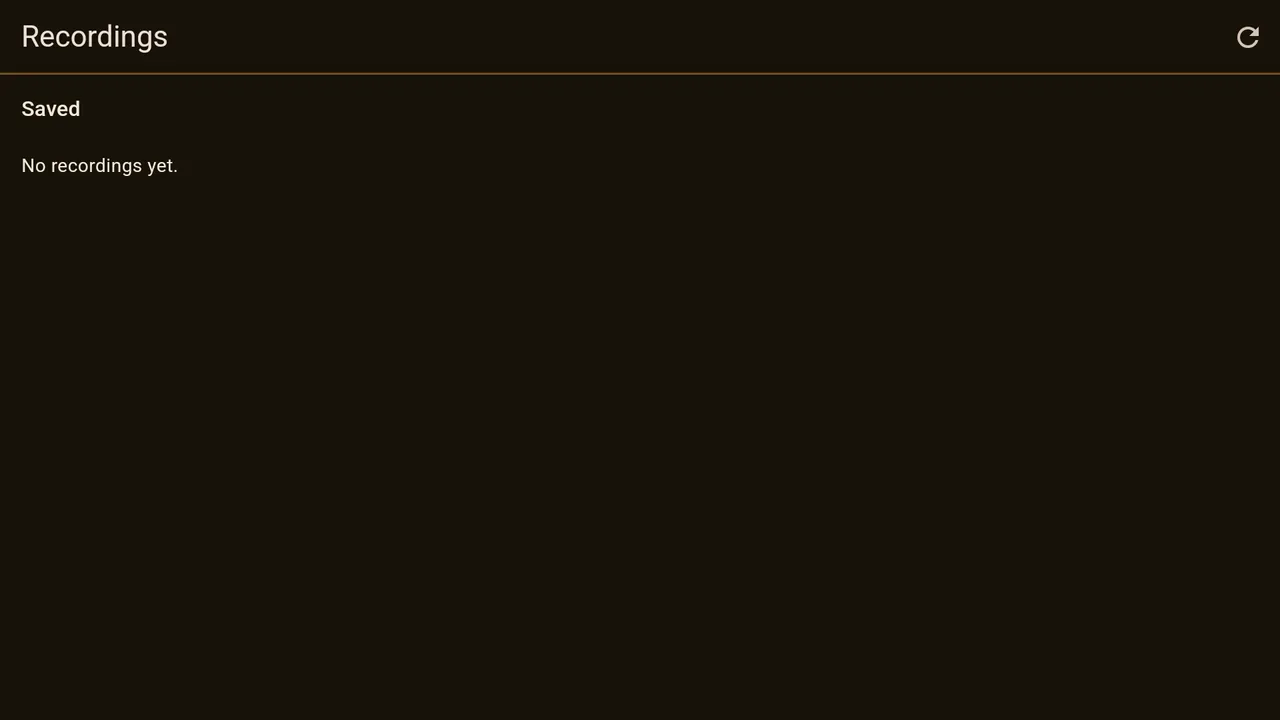
Whether recording is permitted depends on your source, not on the app. Ovemio only provides the function.
Settings
Where: area bar → Settings (the gear wheel).
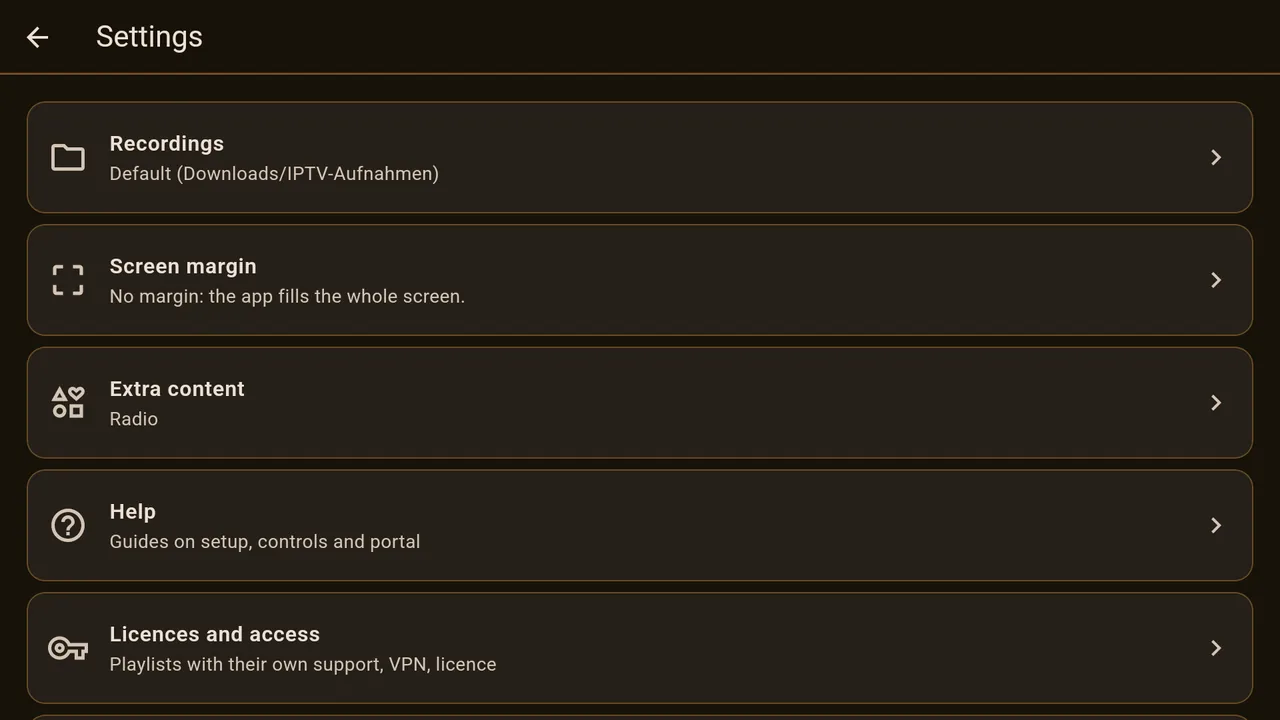
| Recordings | Storage location for recordings and downloaded films. |
|---|---|
| Screen margin | TV only: the frame for devices that cut off the edge of the picture. |
| Extra content | Show or hide radio. |
| Help | This manual and the other guides. |
| Licences and accounts | Licence, remote setup, TMDB, VPN, playlists. |
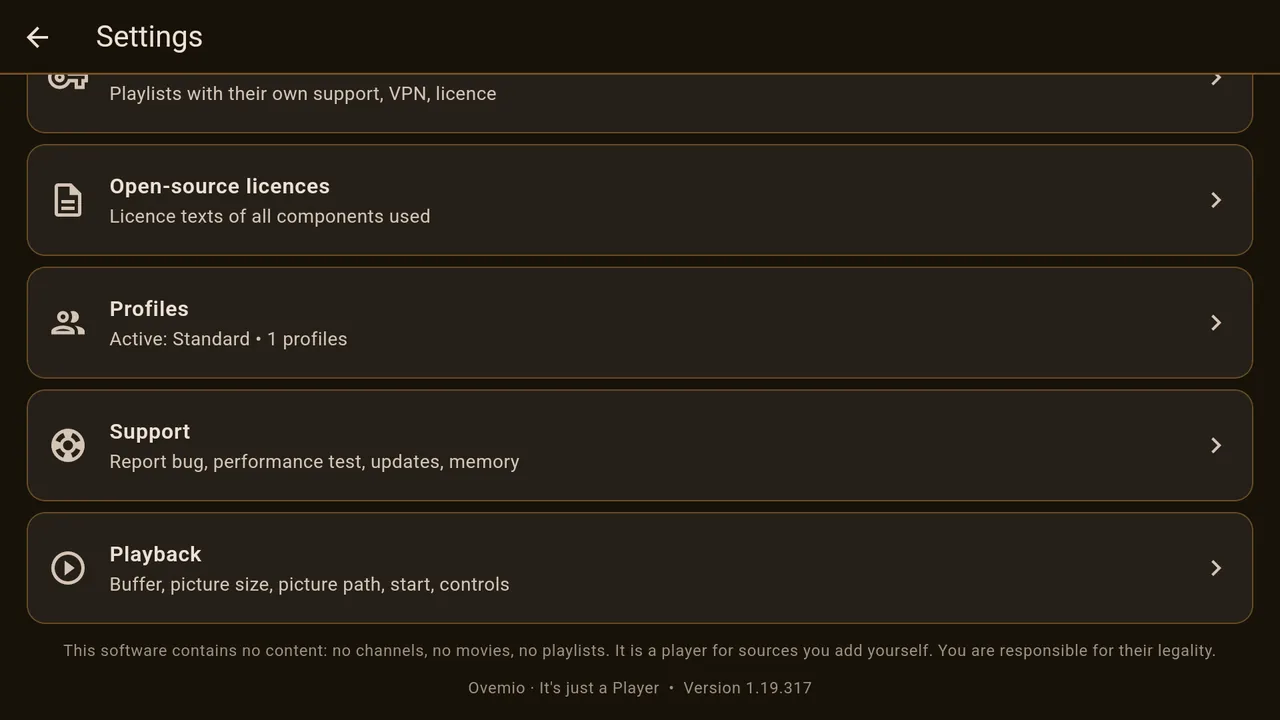
| Open-source licences | The licence texts of the components used. |
| Profiles | Separate areas for several people. |
| Support | Report bugs, remote support, performance test, updates, memory. |
| Playback | Controls, picture size, picture path, buffer, start. |
Licences and accounts
Where: Settings → Licences and access.
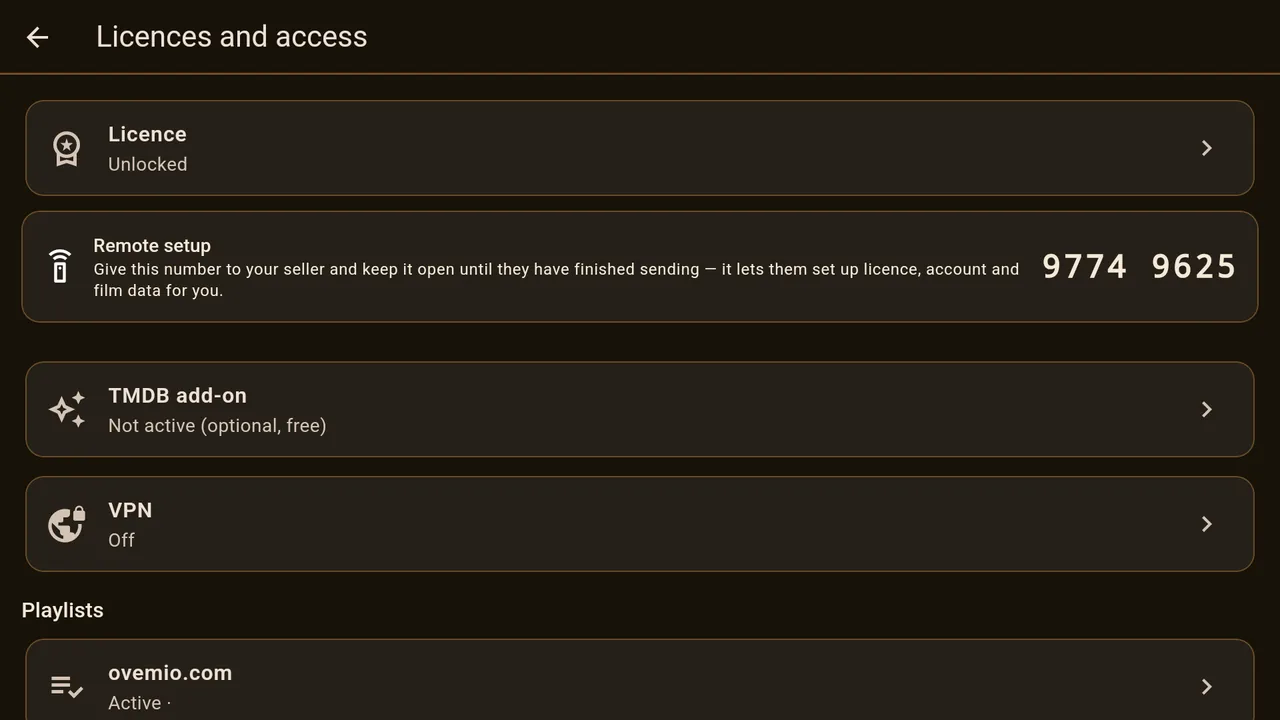
Licence shows whether the device is activated and lists all devices that use the key. There you approve a device, transfer the licence to another one by QR code or sign it out on this device.
TMDB add-on holds your film data key. VPN is only available on Android: up to three of your own OpenVPN accesses, connecting at start if you wish.
Under Playlists you find every list you have entered; the active one is marked. If your provider has a support channel, “Support” appears below it and you can write to them directly from the app. Find legal playlists here shows a QR code for the iptv-org directory of free-to-air channels.
Playback
Where: Settings → Playback. The defaults suit most devices.
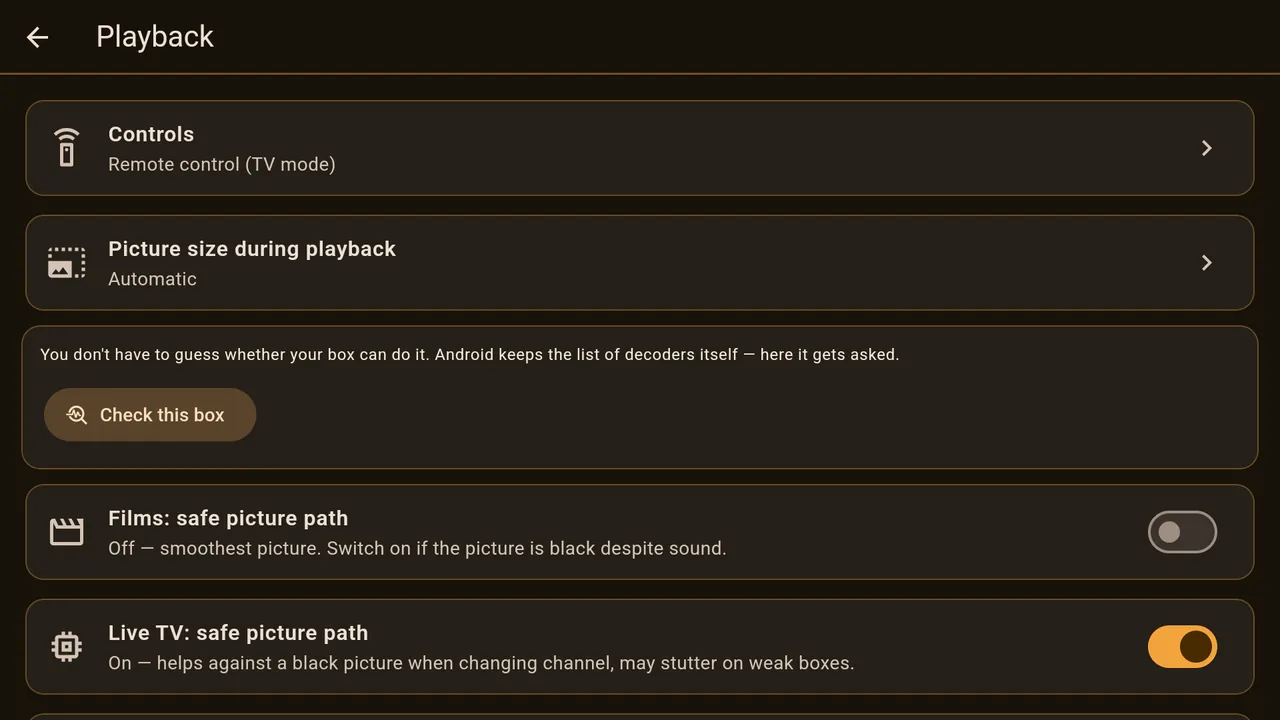
| Controls | “Remote control (TV mode)” or “Mouse and finger”. It also contains “Learn remote keys” and “Bundle channels” for channels that come in several qualities. |
|---|---|
| Picture size during playback | Automatic measures what the device can handle. Can be fixed at full size, 75% or 50%. |
| Check this box | Android only: asks the box which picture formats it plays in hardware. |
| Films: safe picture path | Switch it on if a film has sound but the picture stays black. |
| Live TV: safe picture path | The same for channels, for example if the picture is black after switching. May stutter on weak boxes. |
| Next episode | Show the button at the end of an episode or not. |
| Buffer | How much reserve is loaded before the picture starts. Automatic learns separately for TV and films; a fixed value is set in seconds. |
| Intro | Switch the short animation at start on or off. |
| Start | Whether Ovemio starts by itself after the box is switched on or wakes up from standby. |
Profiles
Where: Settings → Profiles.
Each profile has its own progress, its own watchlist, favourites and history. Sync now fetches profiles, history and favourites from your other devices.
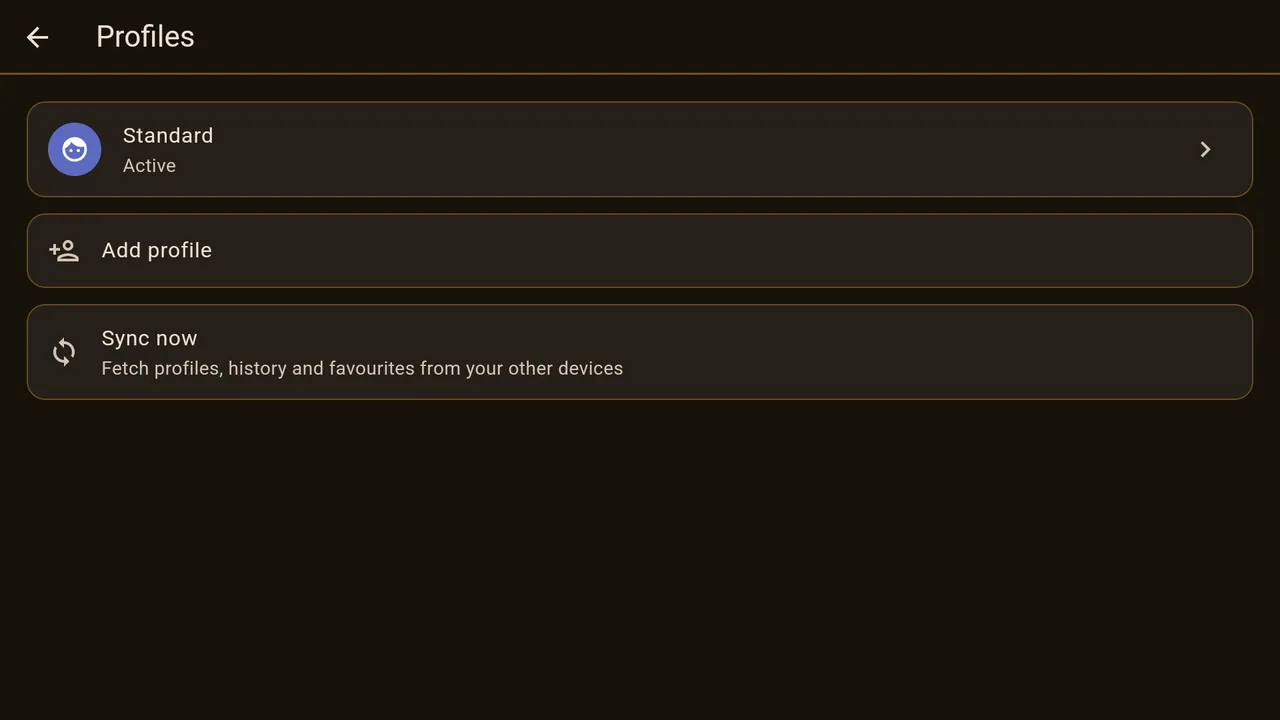
When you select a profile, you set: name and picture, design and language, whether a start page appears, your sports selection, which categories are visible and in what order, a PIN and whether it is a kids profile with an age limit.
A child profile is a tidying aid, not a parental lock. It hides what you specify — it does not check what happens in the programmes.
Support
Where: Settings → Support.
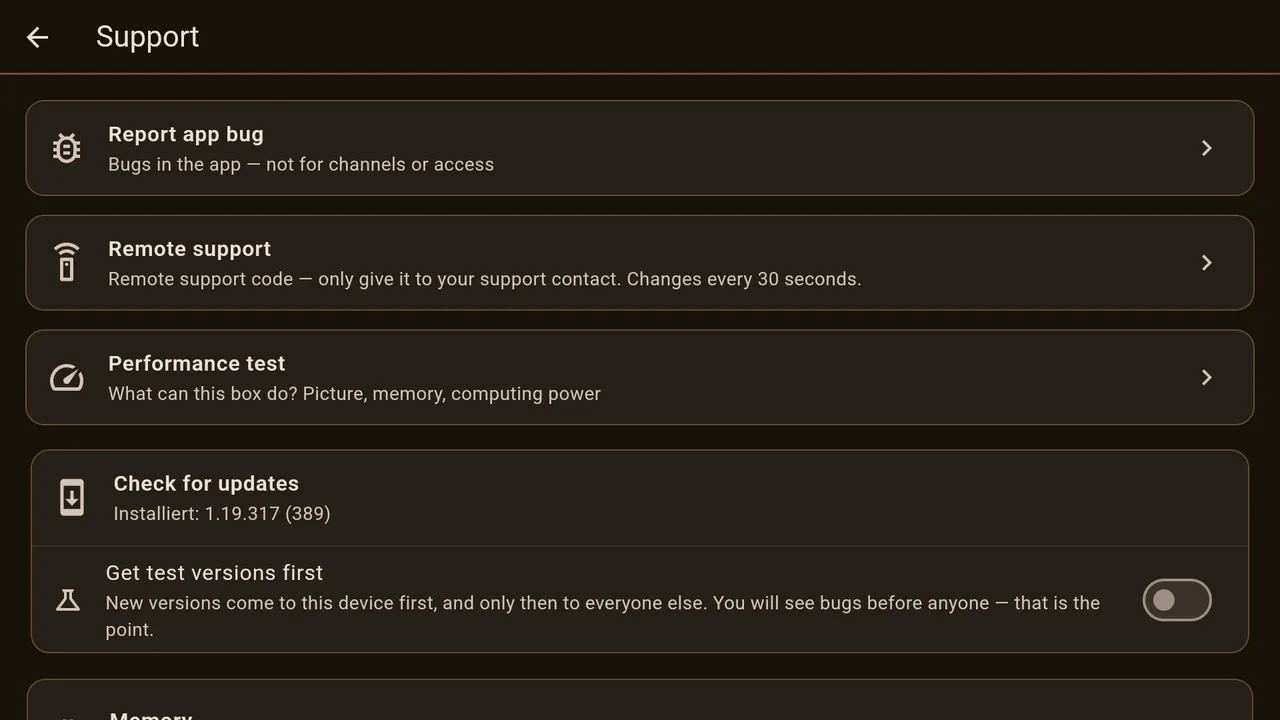
Report app bug is for faults in the app, not for a channel that does not play. The report contains what the app tried to do. Remote support shows a code that changes every 30 seconds; only give it to the person looking after you. Performance test measures the box’s picture, memory and processing power. Check for updates shows the installed version; with “Get test versions first” this device receives new versions before everyone else. Memory shows how much space the app takes up and cleans up if you want.
This manual in the app
Under Settings → Help this manual is also in Ovemio itself, with the same pictures. It comes fresh from the server every time, so it is as up to date as this page.